AI Re-Edit Prompt Guide
Ready-to-use prompts for AutoHDR's most powerful (and underused) tool. Copy any prompt, paste it into the AI Re-Edit dialog, and hit Generate.
How to use AI Re-Edit
1
Open any photo → click AI Re-Edit
2
Type or paste your prompt into the Edit Instructions field
3
Optionally upload a Reference Image to guide style or content
4
Click Generate — regenerate freely if the first result isn't perfect
5
Bulk edit: hold Shift+Click to select multiple photos, then run one prompt
Cinematic Lighting & Color Grading
Match a specific tone or mood using a reference image.
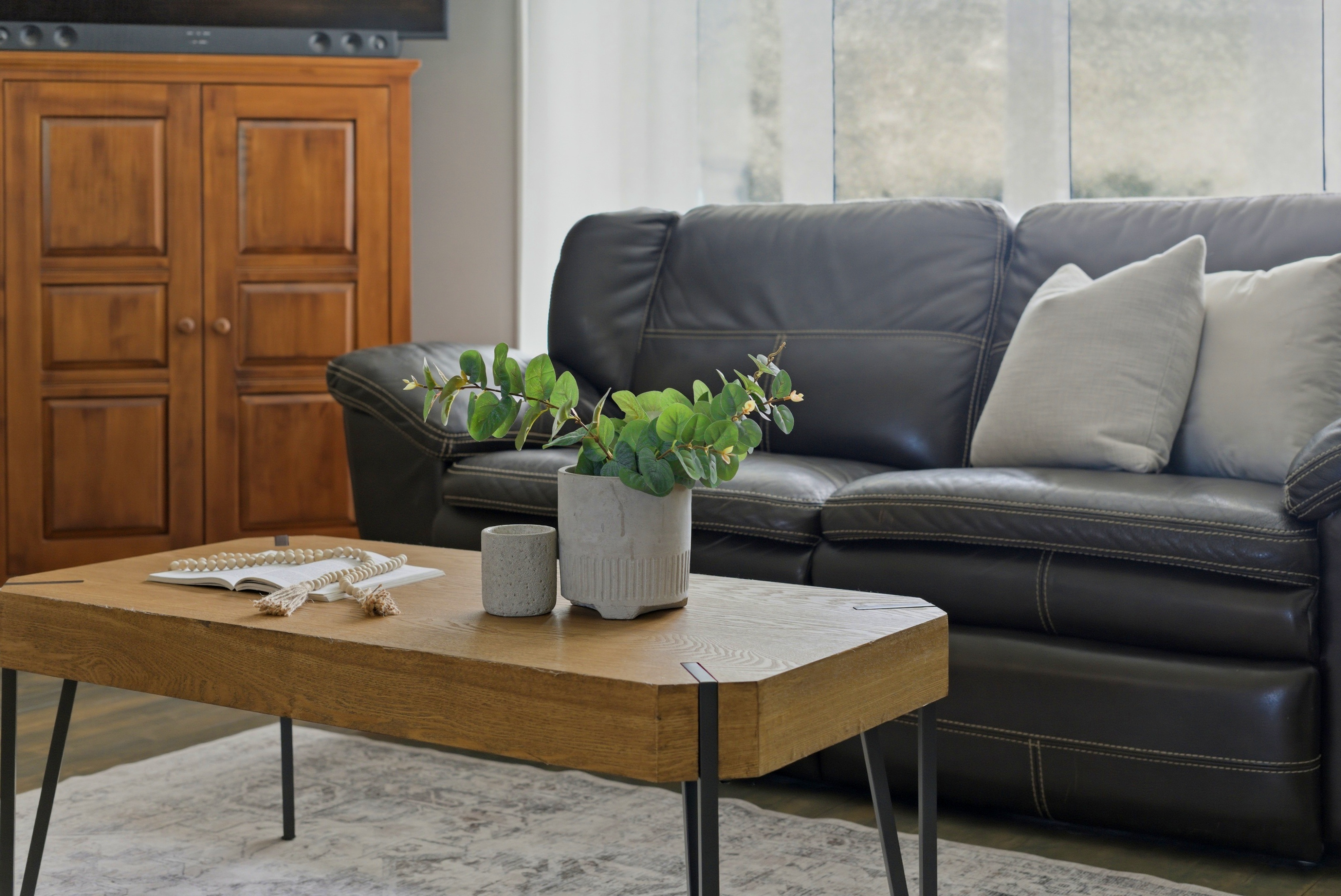
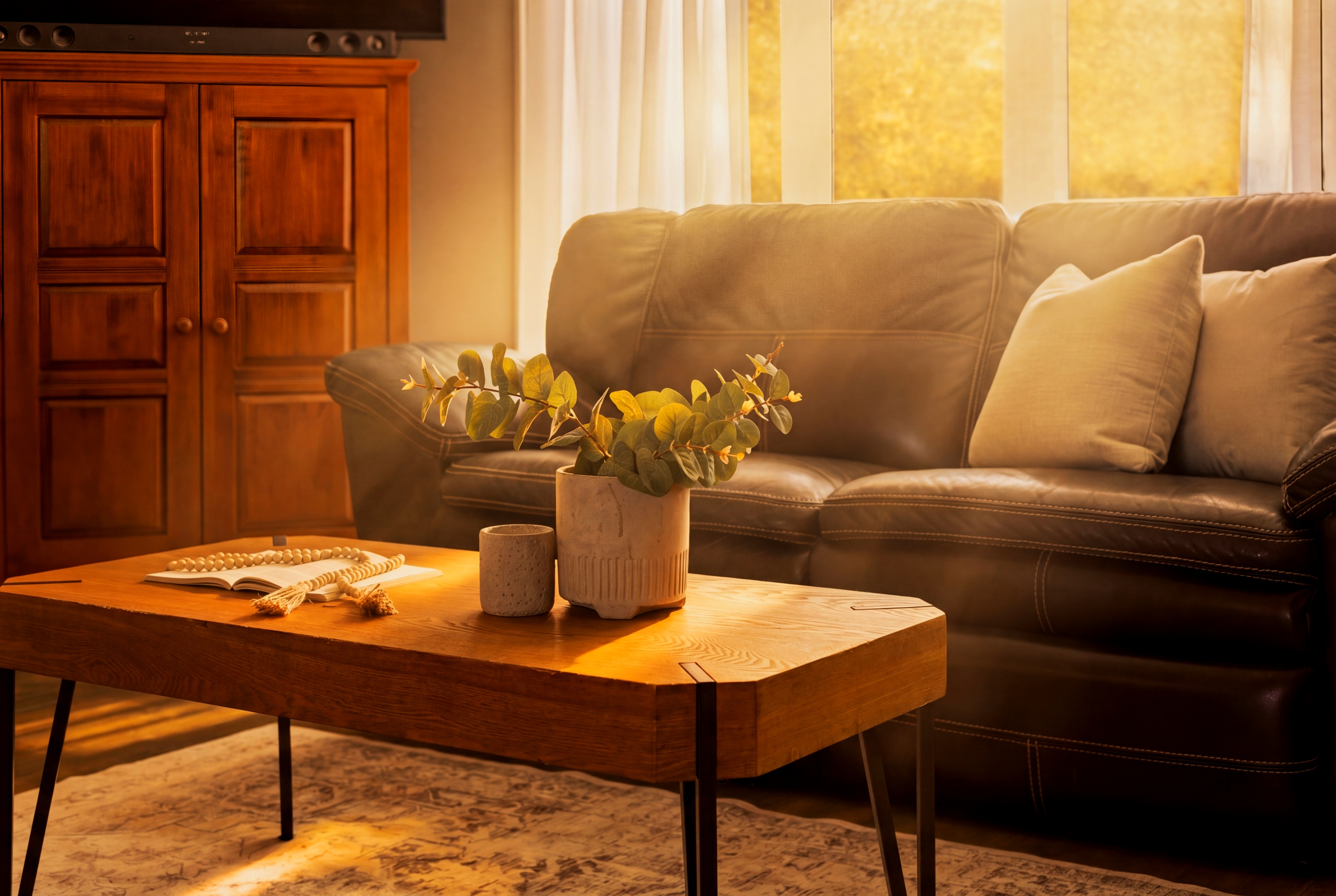
Color grade to match a reference
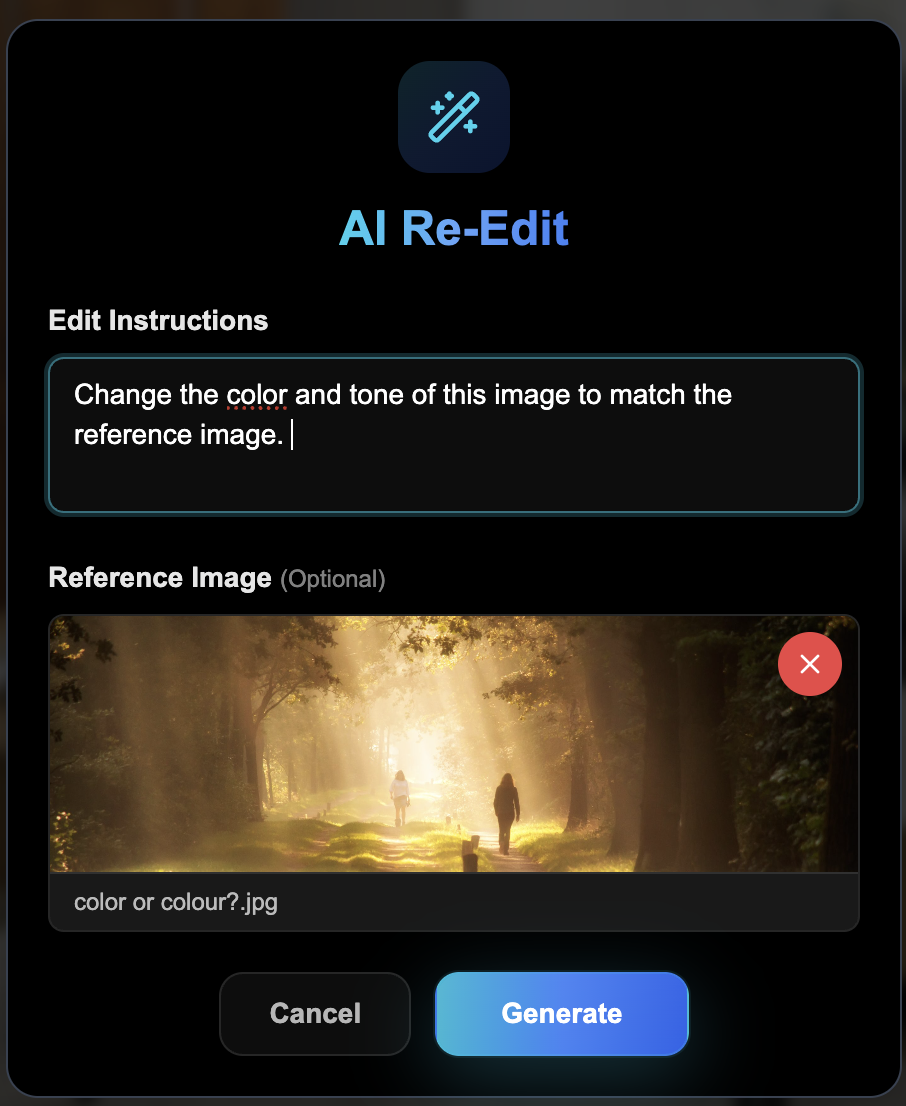
“Change the color and tone of this image to match the reference image.”
Upload any reference image — a movie still, Pinterest photo, or anything with the tone you're going for.
Before
Prompt
After
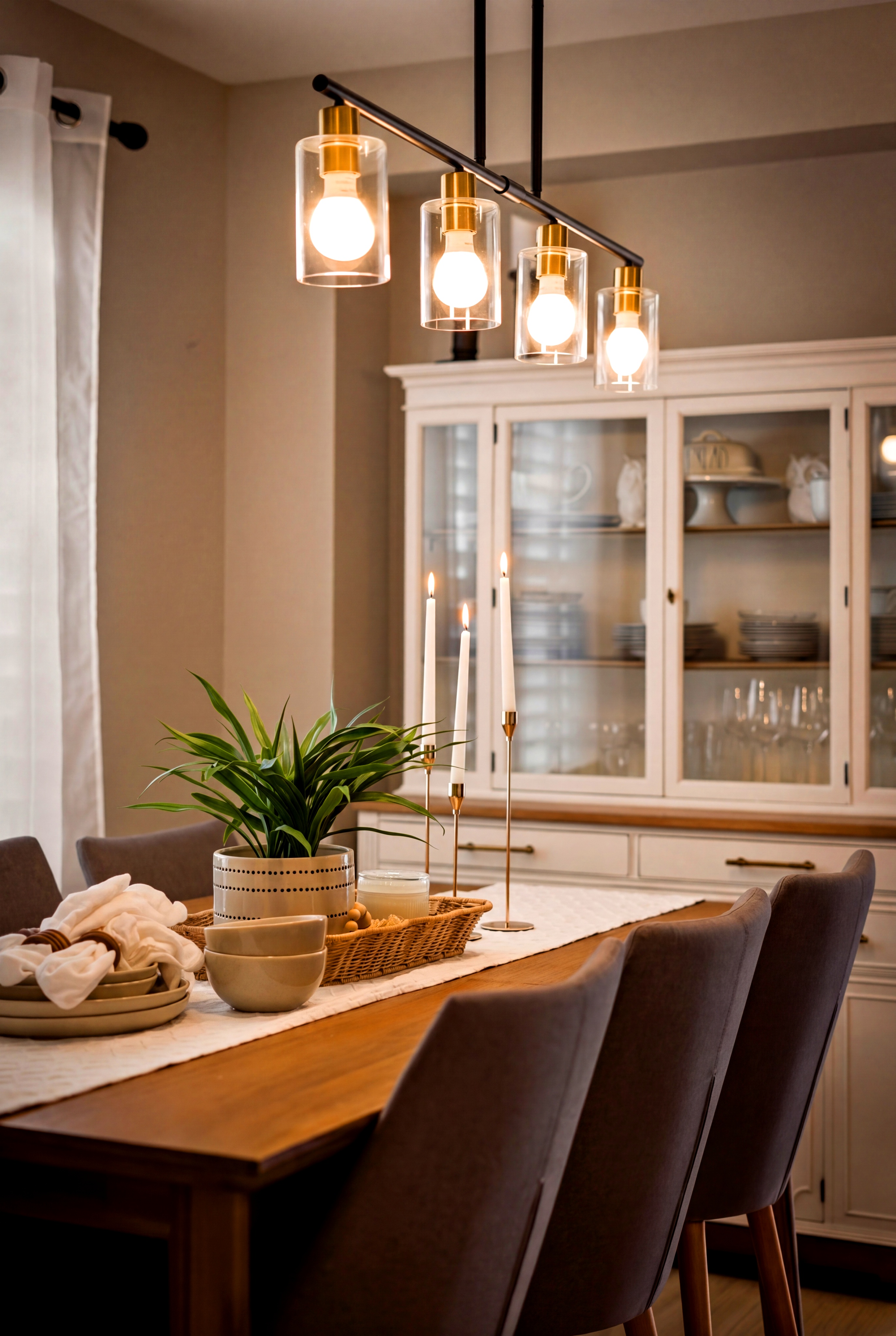
Moody cinematic tones
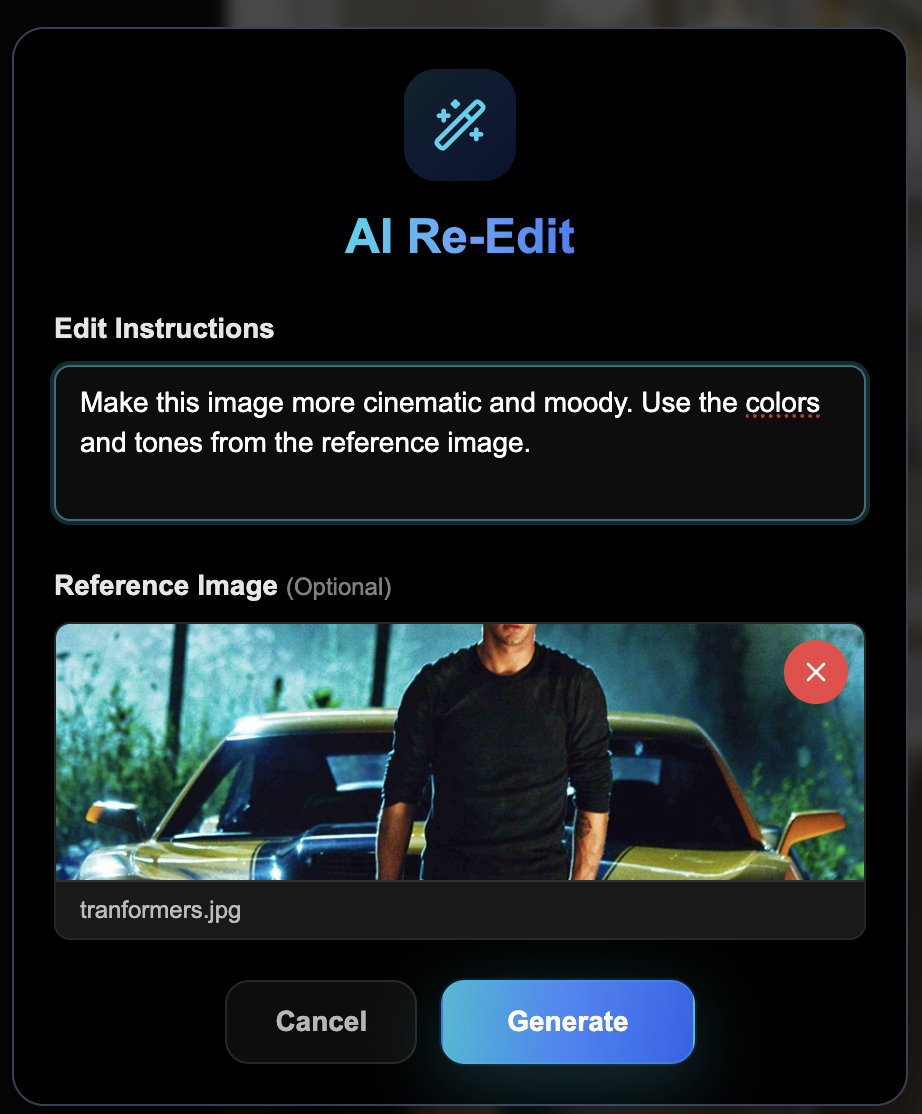
“Make this image more cinematic and moody. Use the colors and tones from the reference image.”
This prompt generates multiple variations — regenerate if the first result isn't quite right.
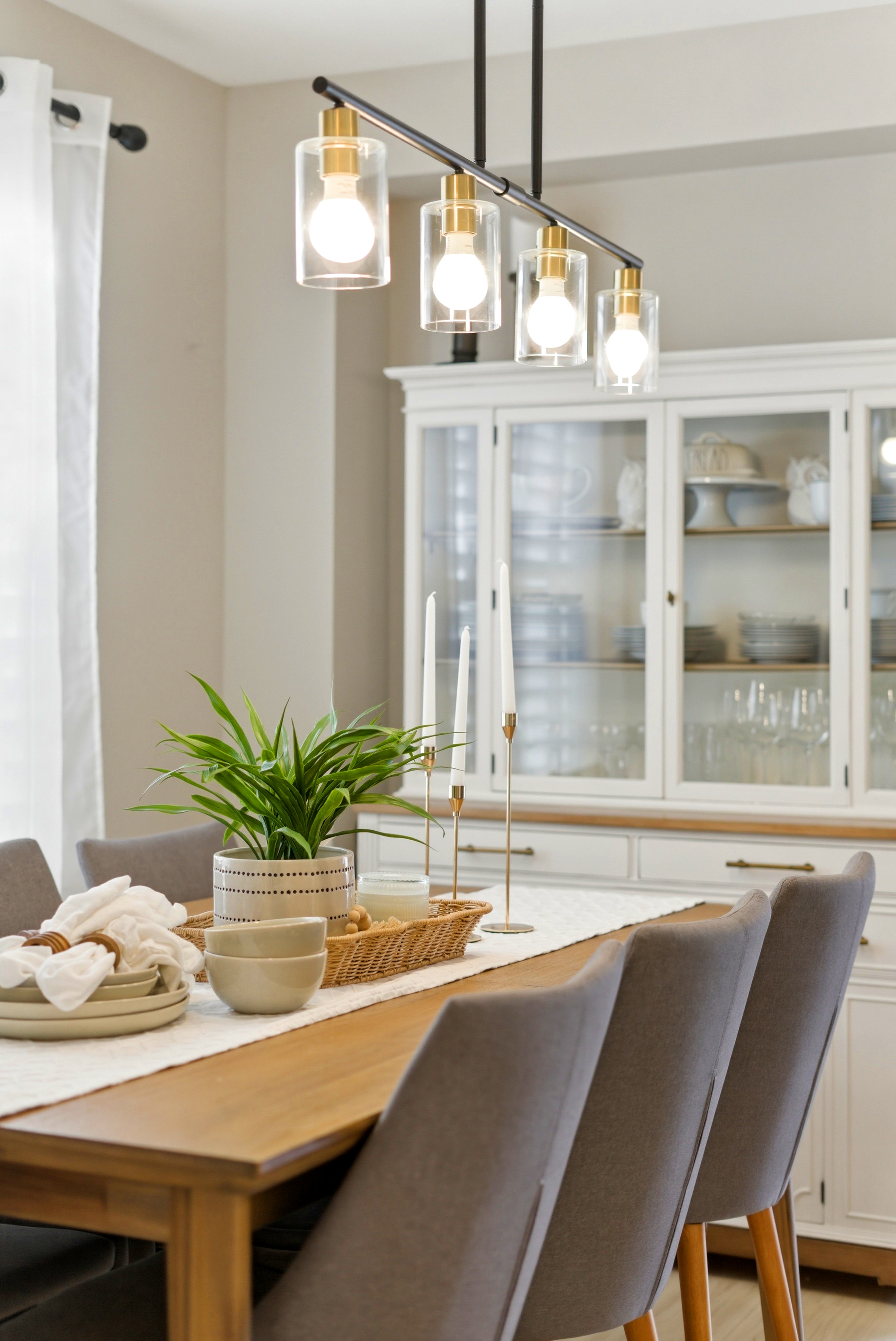
Before
Prompt
After
Additional cinematic grading example
Another example of cinematic color grading using a reference image.
Before
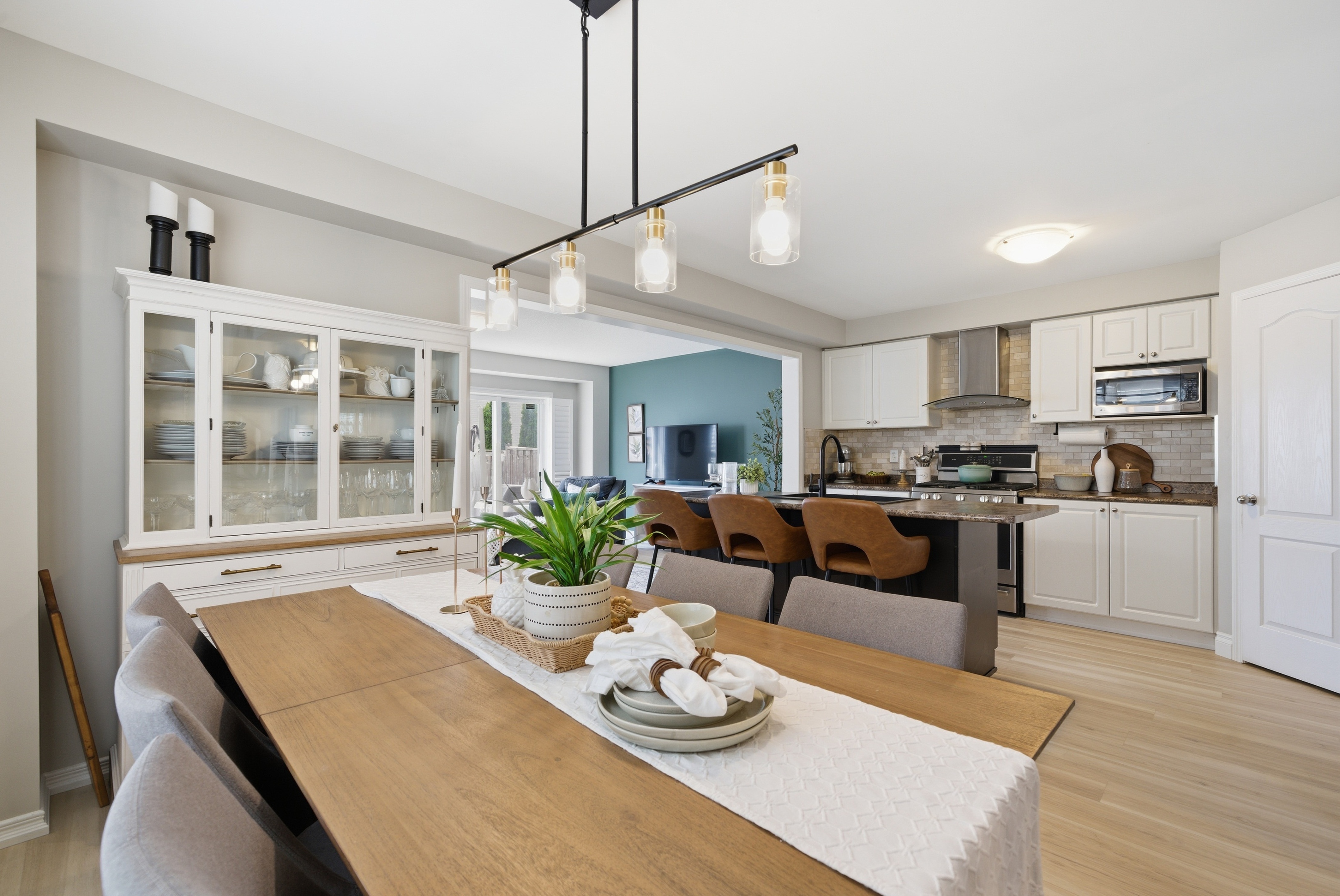
After
Twilight & Sky Enhancements
Push twilight conversions further with cinematic skies and vignettes.
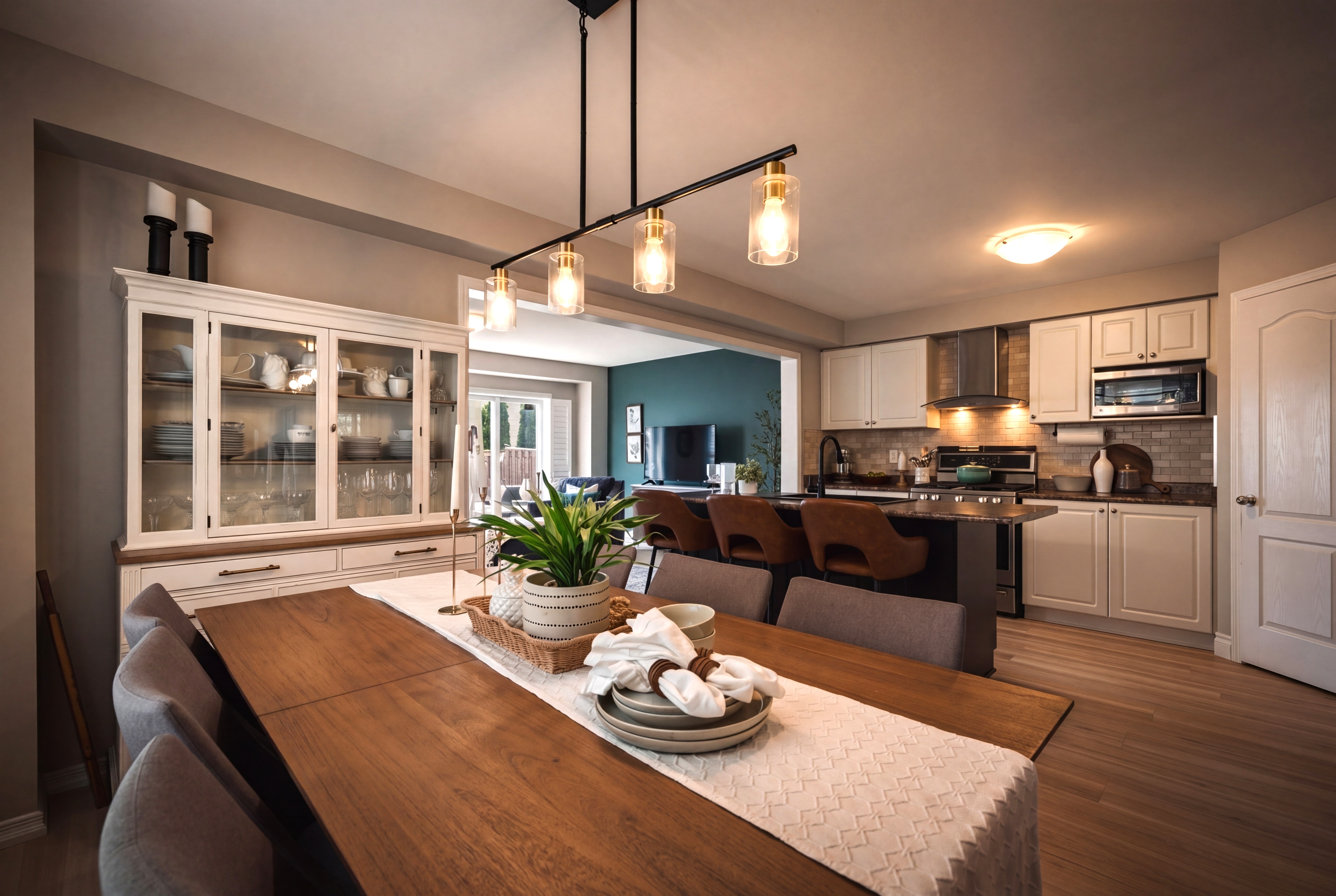
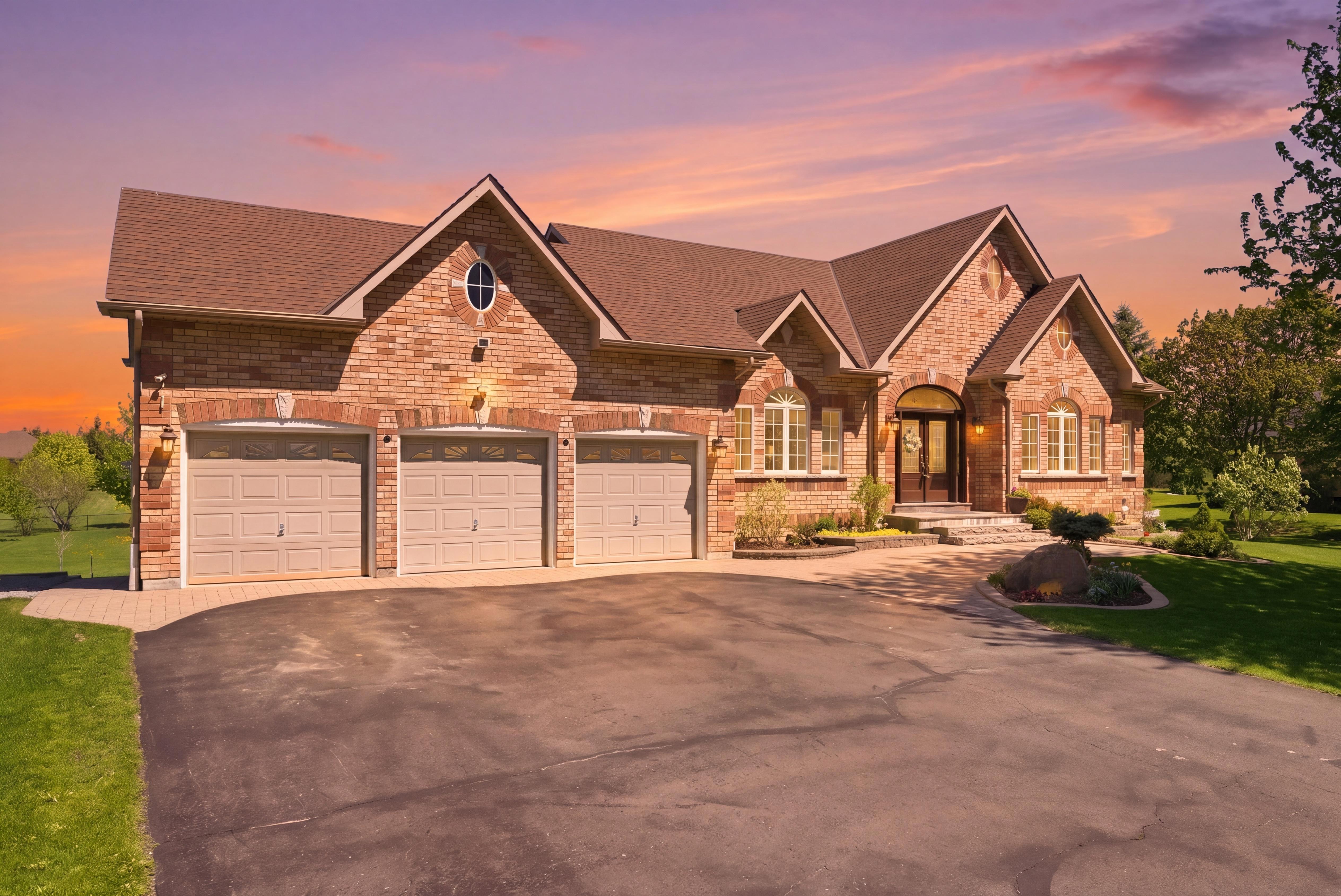
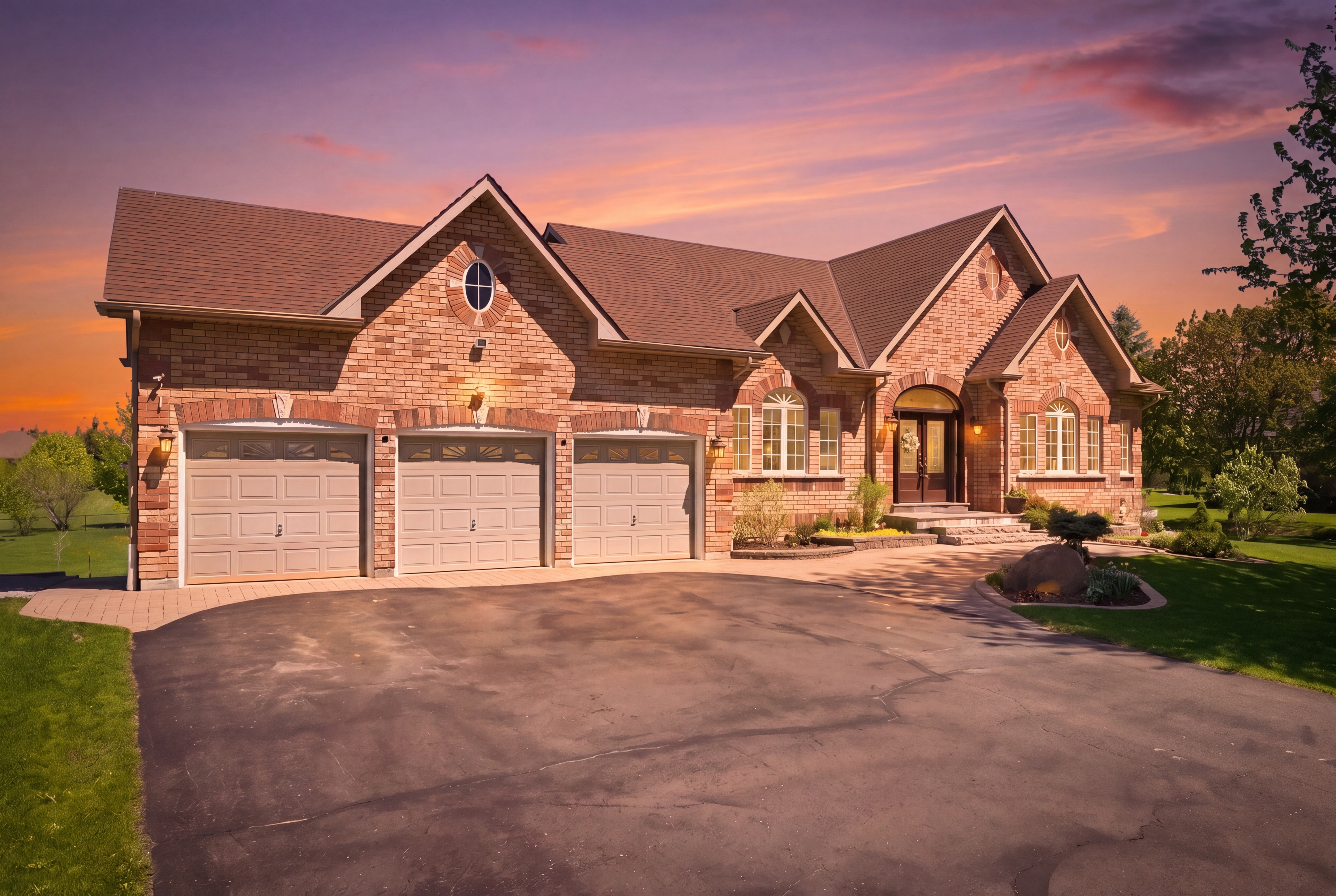
Add a vignette and cinematic feel
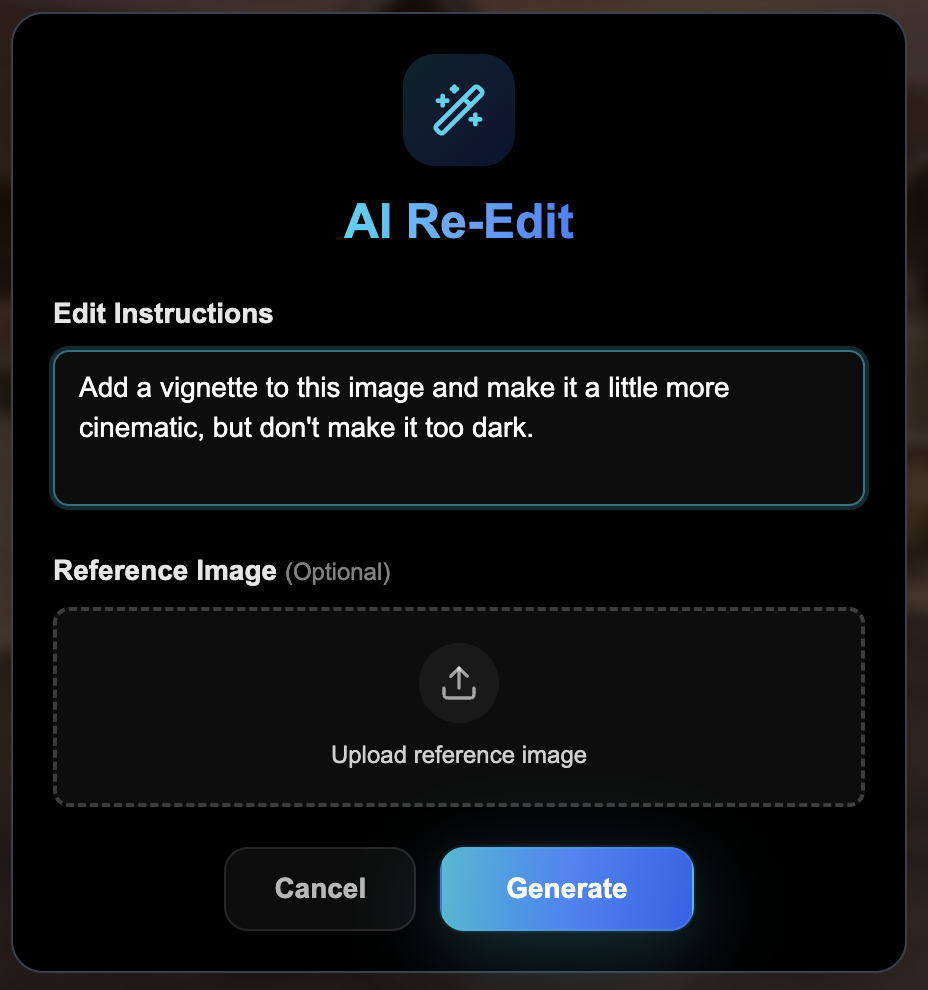
“Add a vignette to this image and make it a little more cinematic, but don't make it too dark.”
No reference image needed — this works with text alone.
Before
Prompt
After
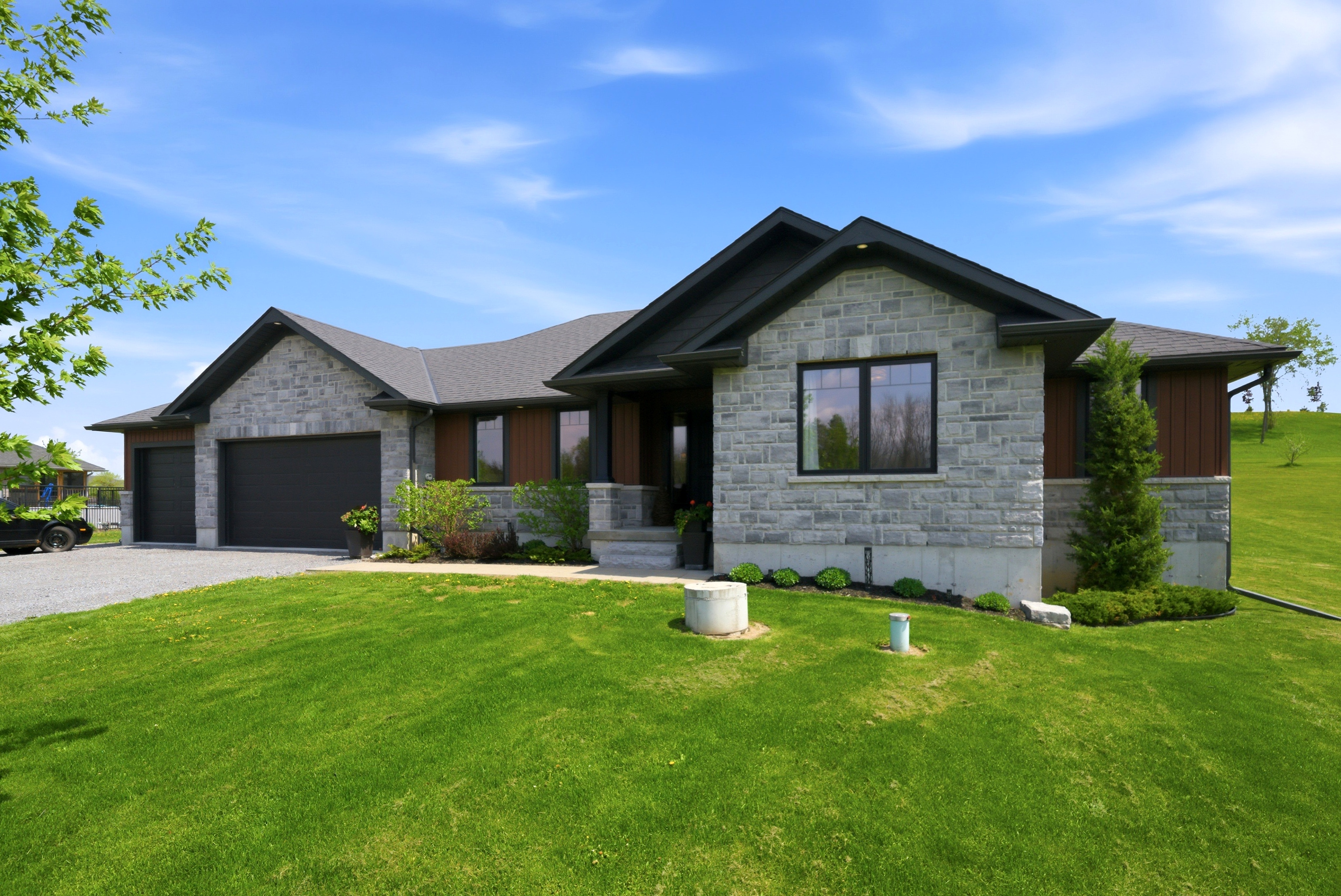
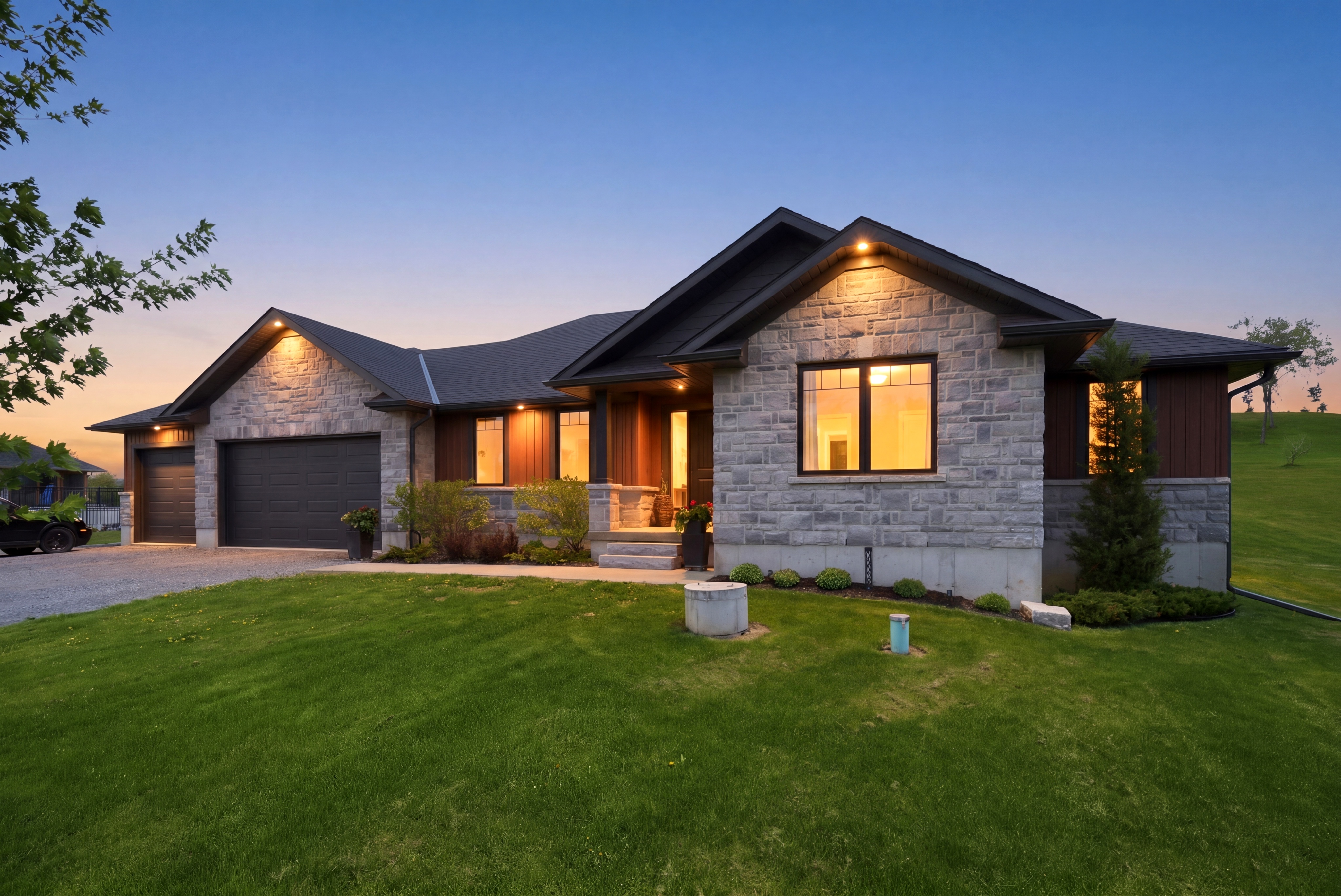
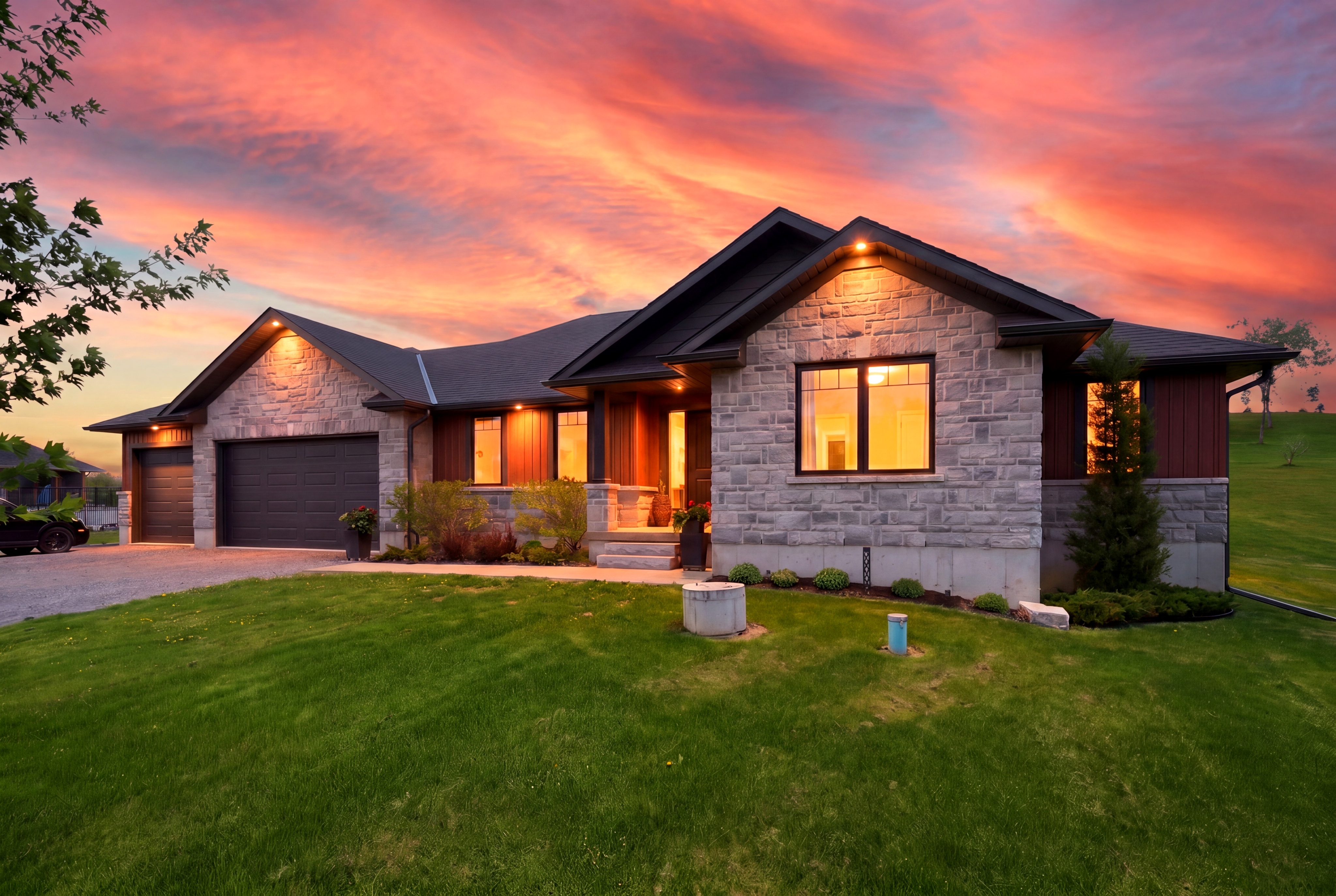
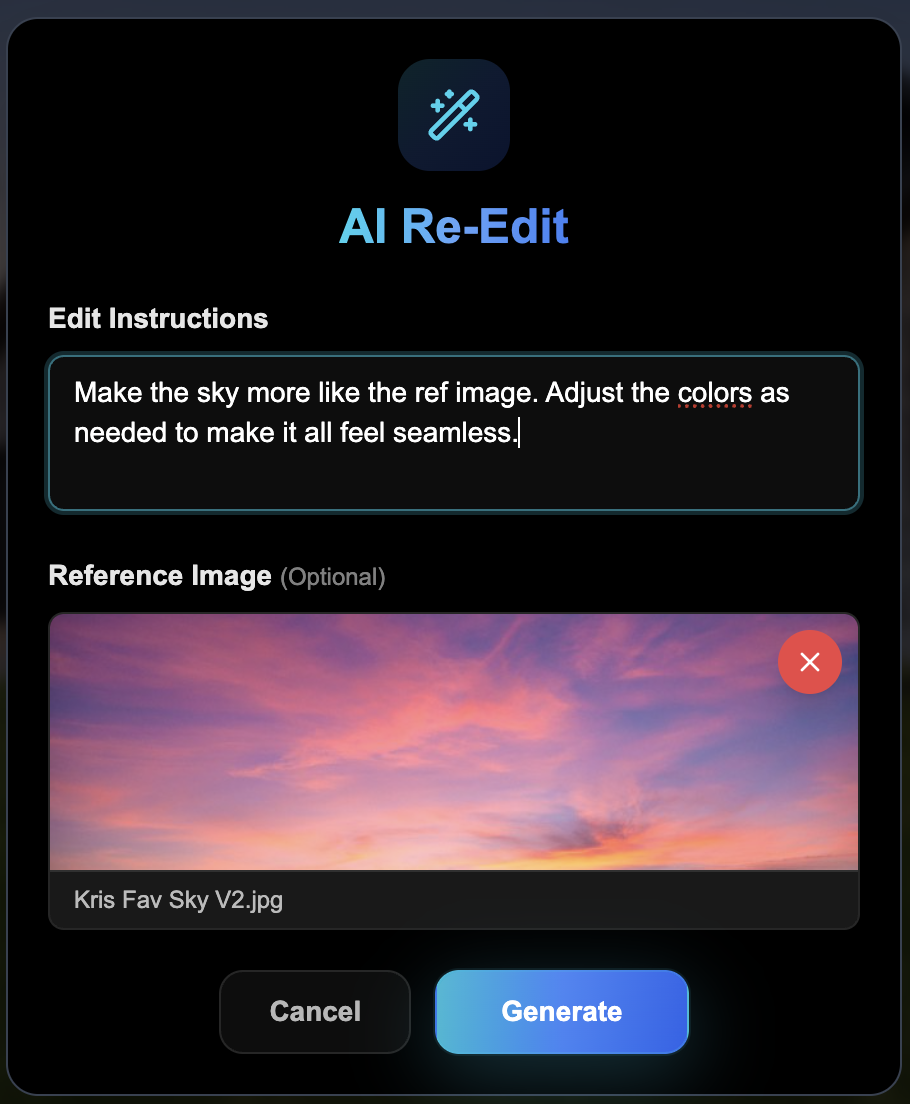
Sky swap using a reference
“Make the sky more like the ref image. Adjust the colors as needed to make it all feel seamless.”
Pro tip: Run AutoHDR's Twilight tool first, then apply AI Re-Edit on the result to push the sky further.
Original
After Twilight Tool
After AI Re-Edit
Prompt Screenshot
Virtual Staging & Design Changes
Modify virtually staged rooms or change design elements.
Accent wall + light fixture swap
“Add an accent wall that complements the room and change the light fixture in the ceiling to something different. The light fixture that's there is too big. It needs to be something smaller.”
Chain it: use AutoHDR's Staging tool first, then layer AI Re-Edit on top to tweak the design.
Original
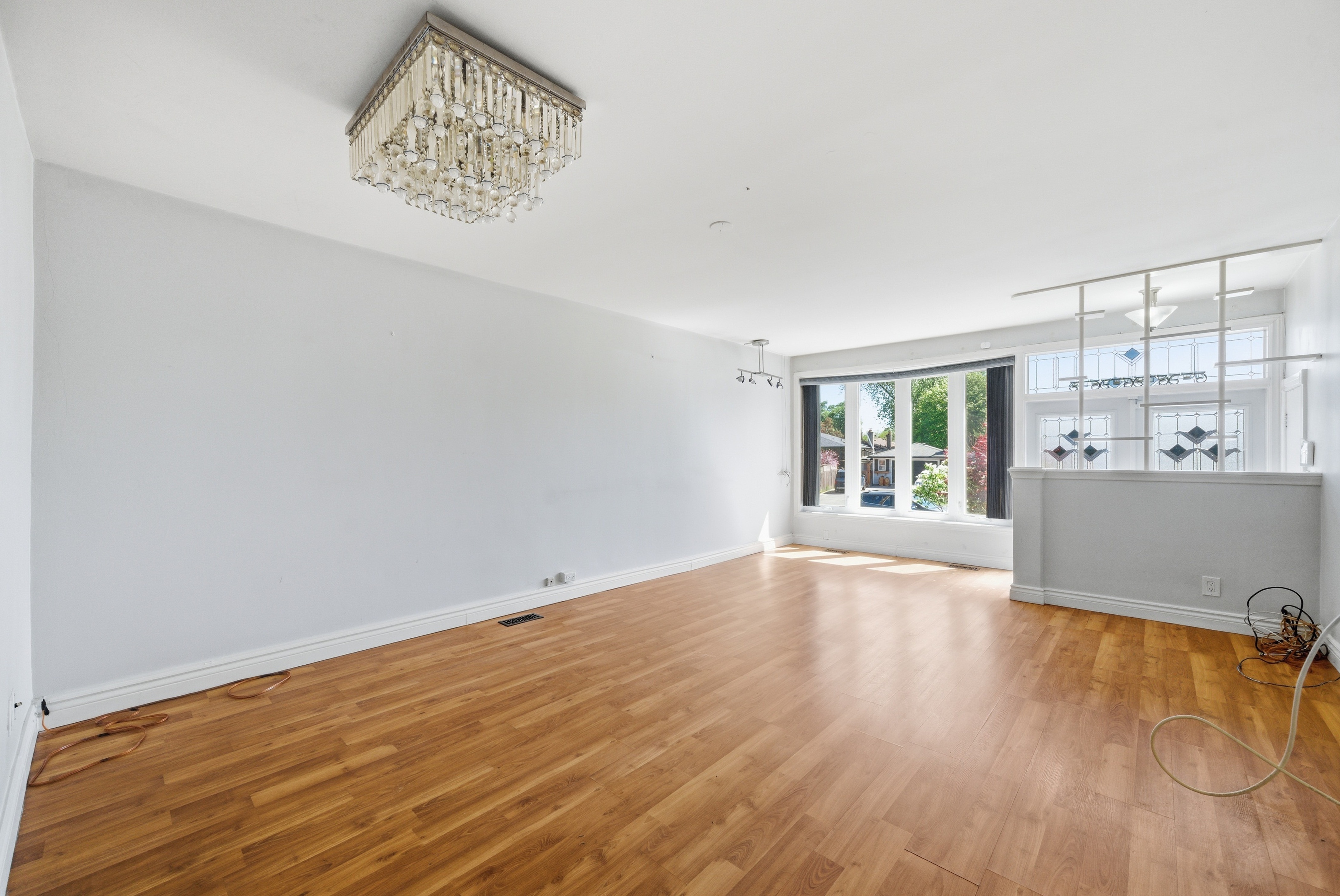
After Staging Tool
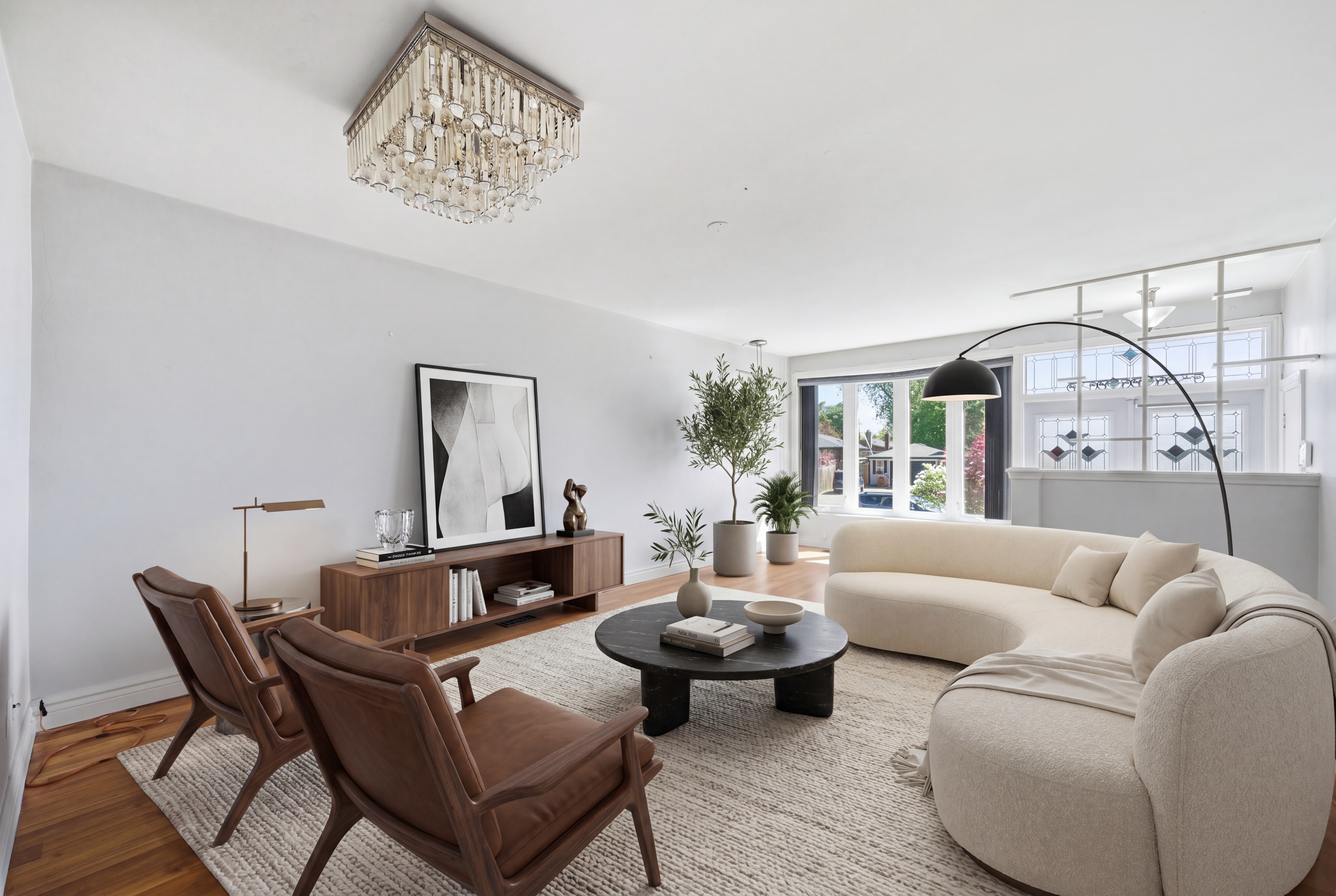
After AI Re-Edit
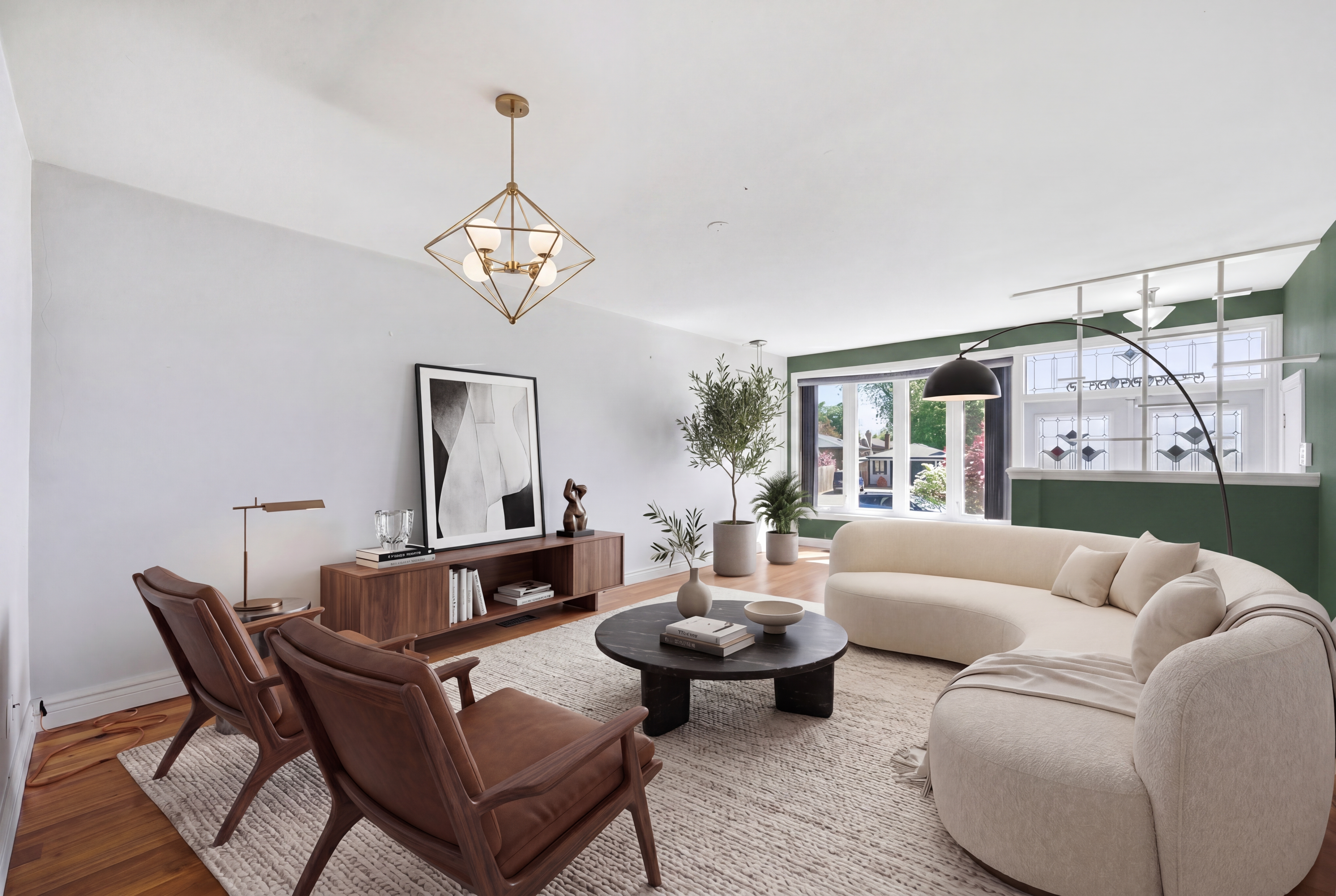
Prompt Screenshot
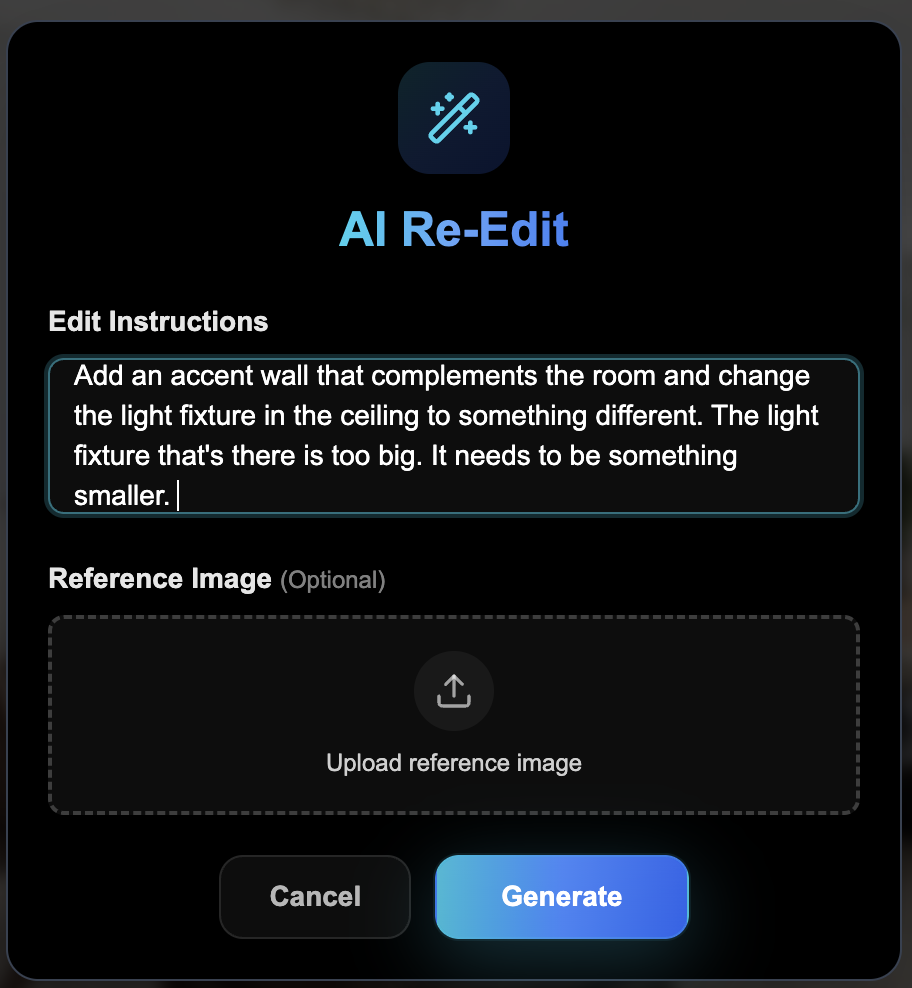
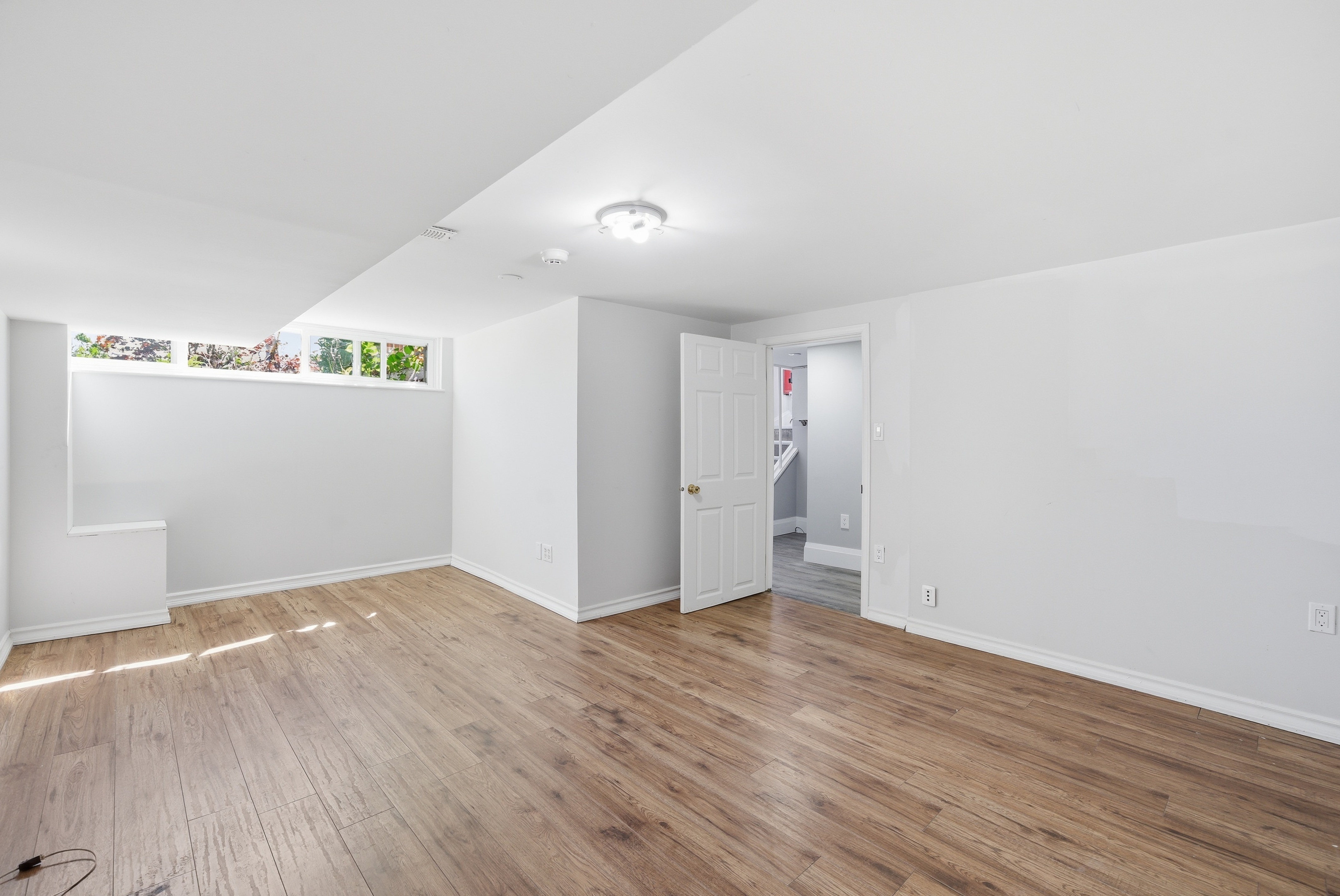
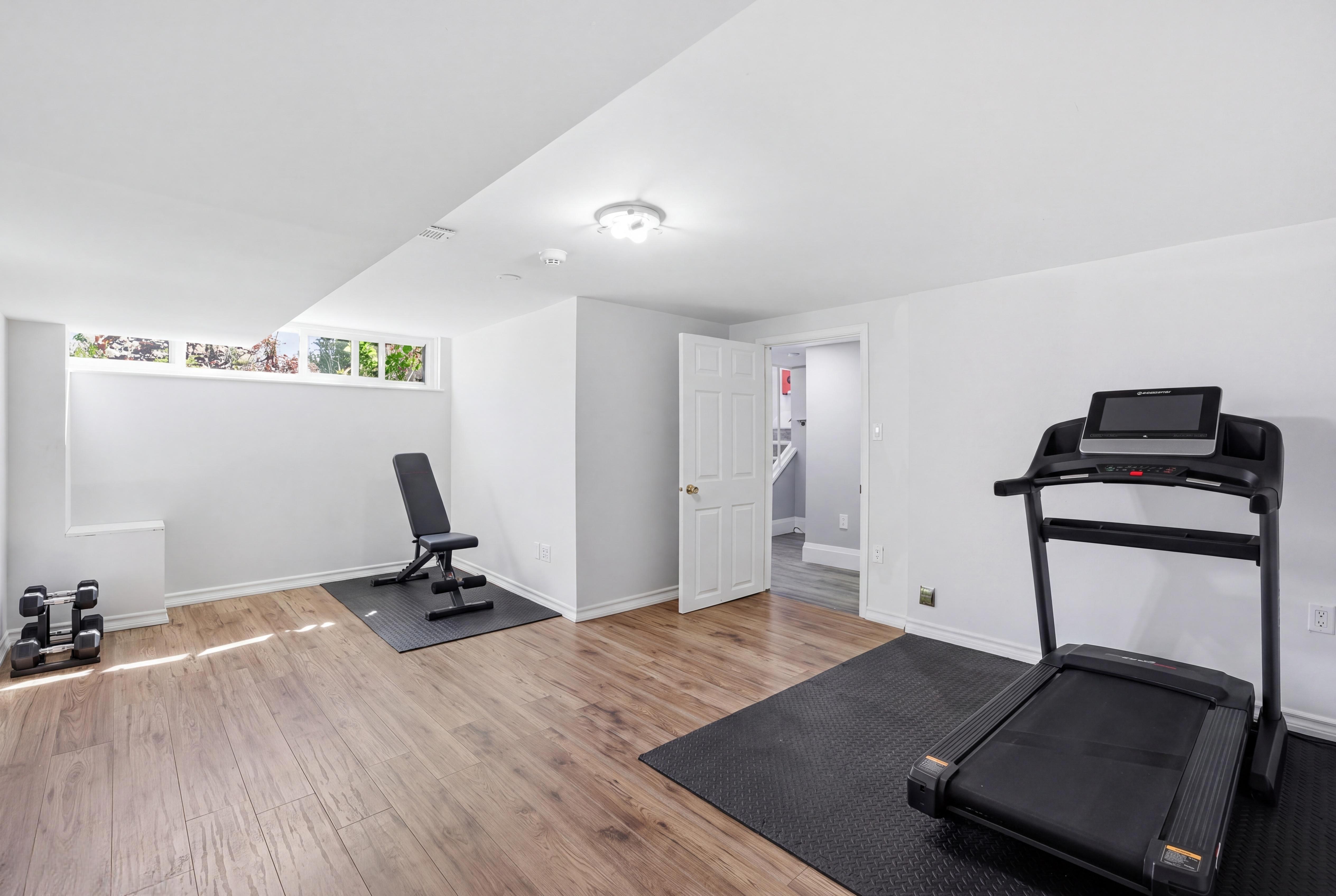
Home gym staging from a reference
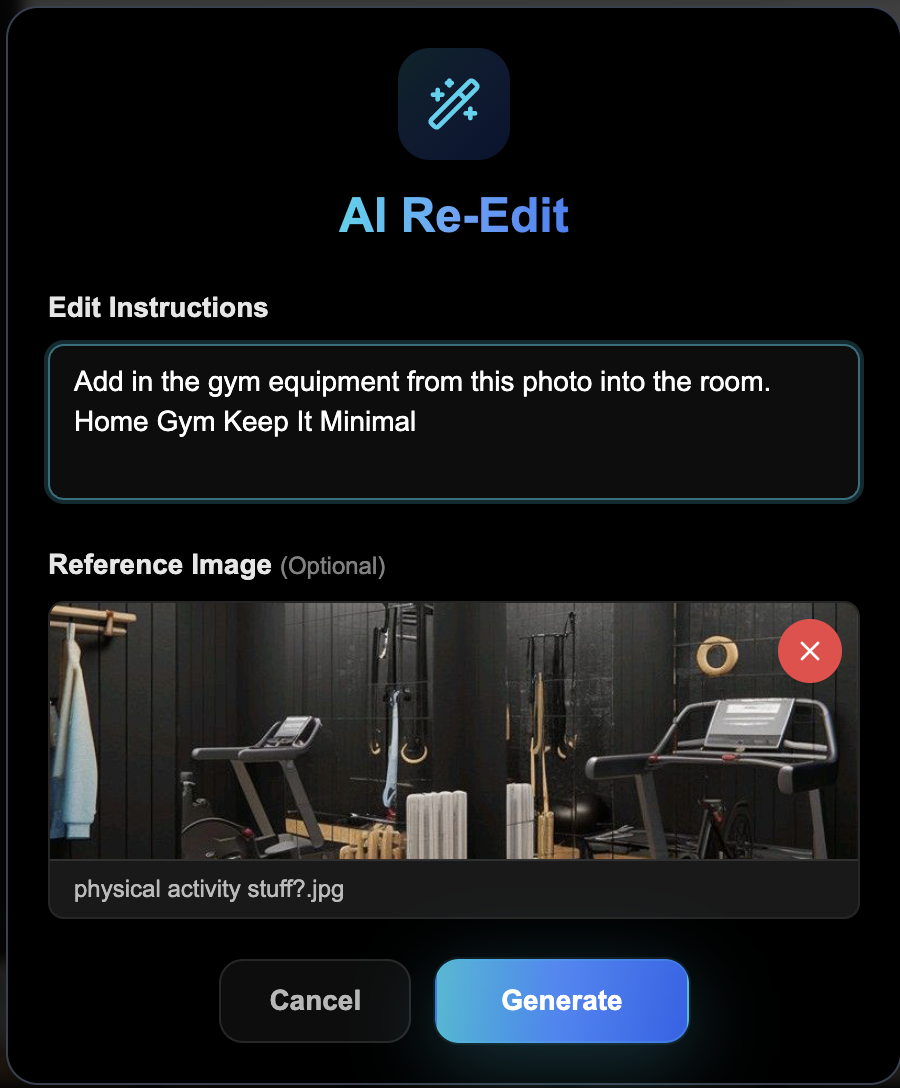
“Add in the gym equipment from this photo into the room. Keep It Minimal”
Upload a reference image of the gym setup you want. The AI adapts it to fit the room.
Before
Prompt
After
Lifestyle Staging
Add people and activity to bring spaces to life.
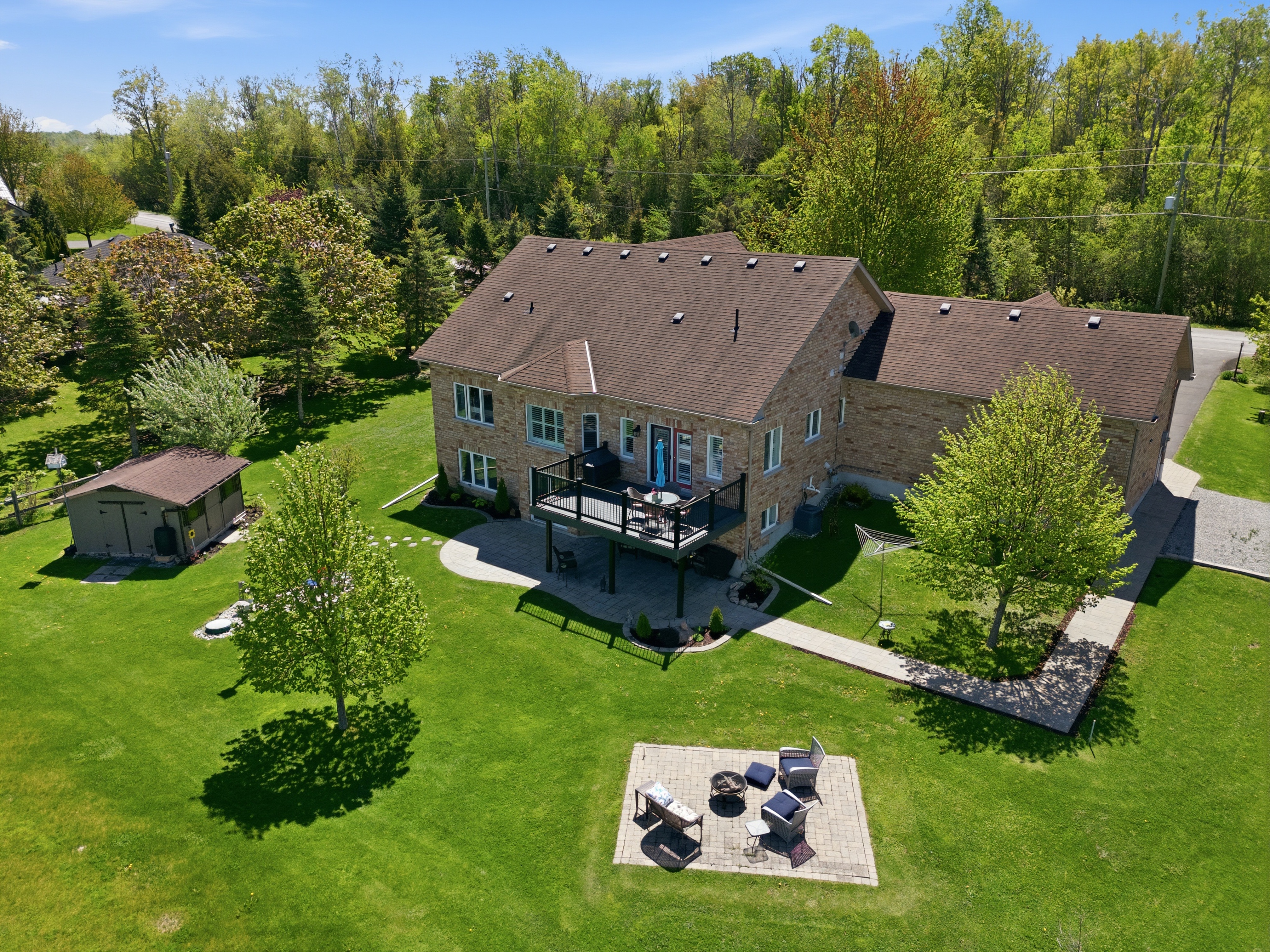
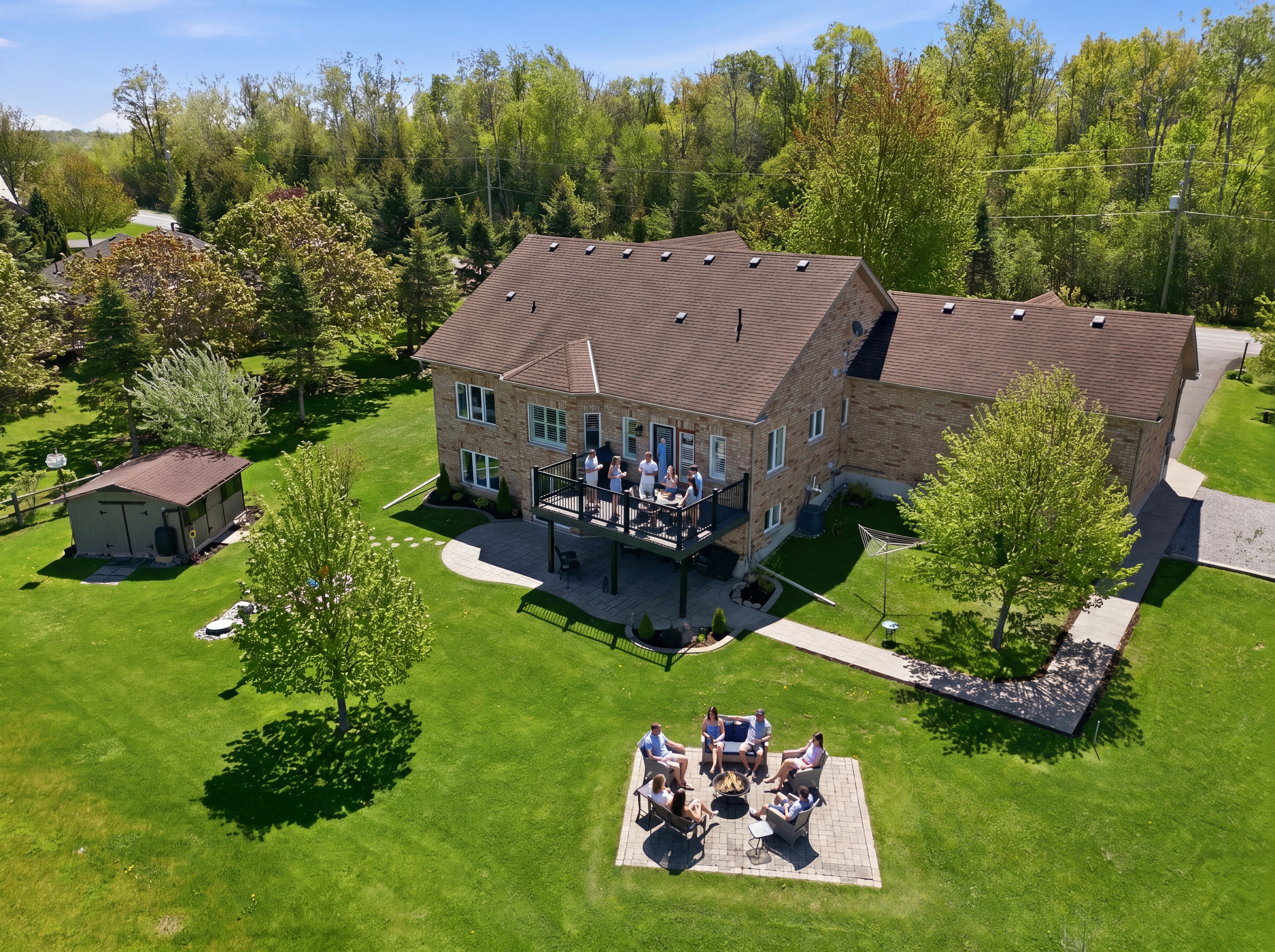
Backyard party scene
“Add in people to make this a backyard party. Have some people sitting around the fire pit and some mingling on the balcony.”
Upload a reference image of people in a similar outdoor setting for better realism.
Before
Prompt
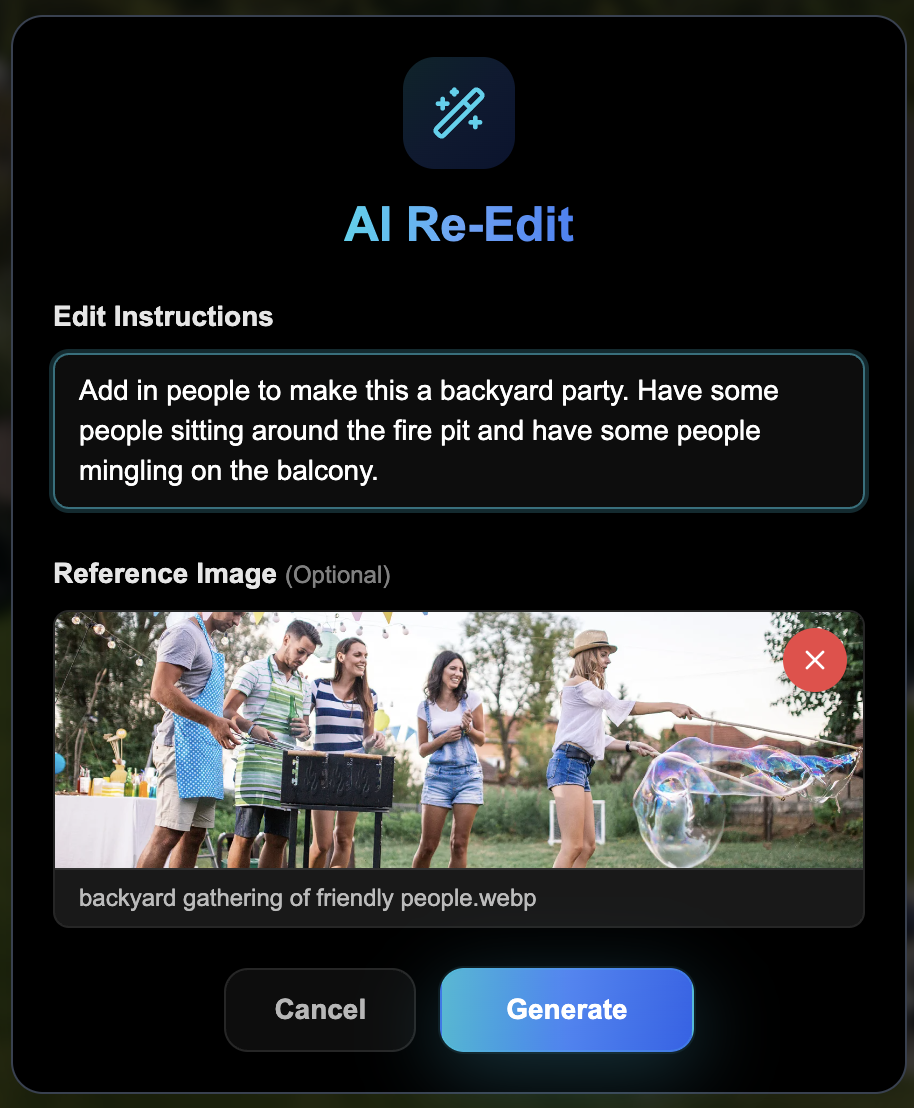
After
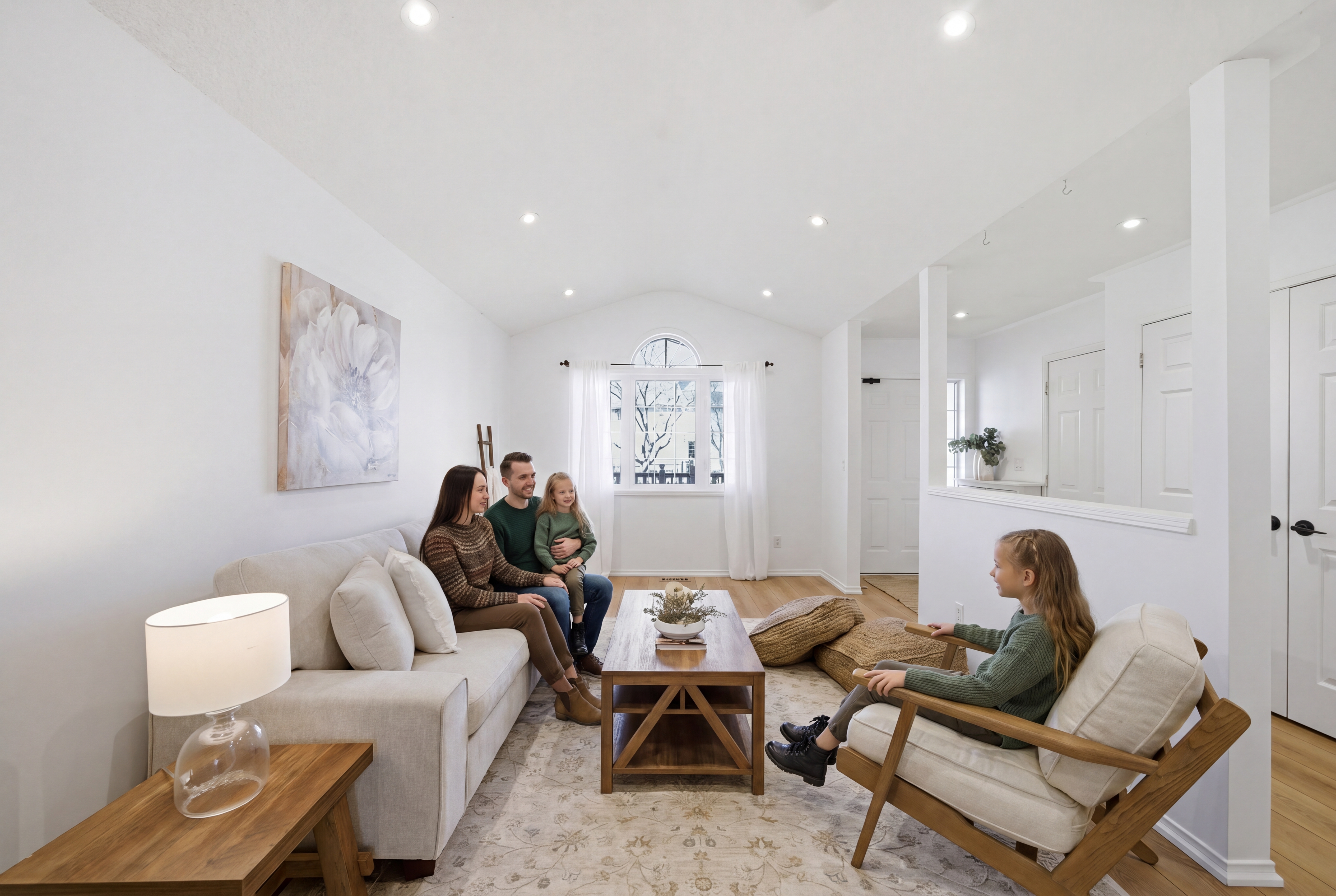
Family in living room
“Add family hanging out in the living room to this photo.”
Before
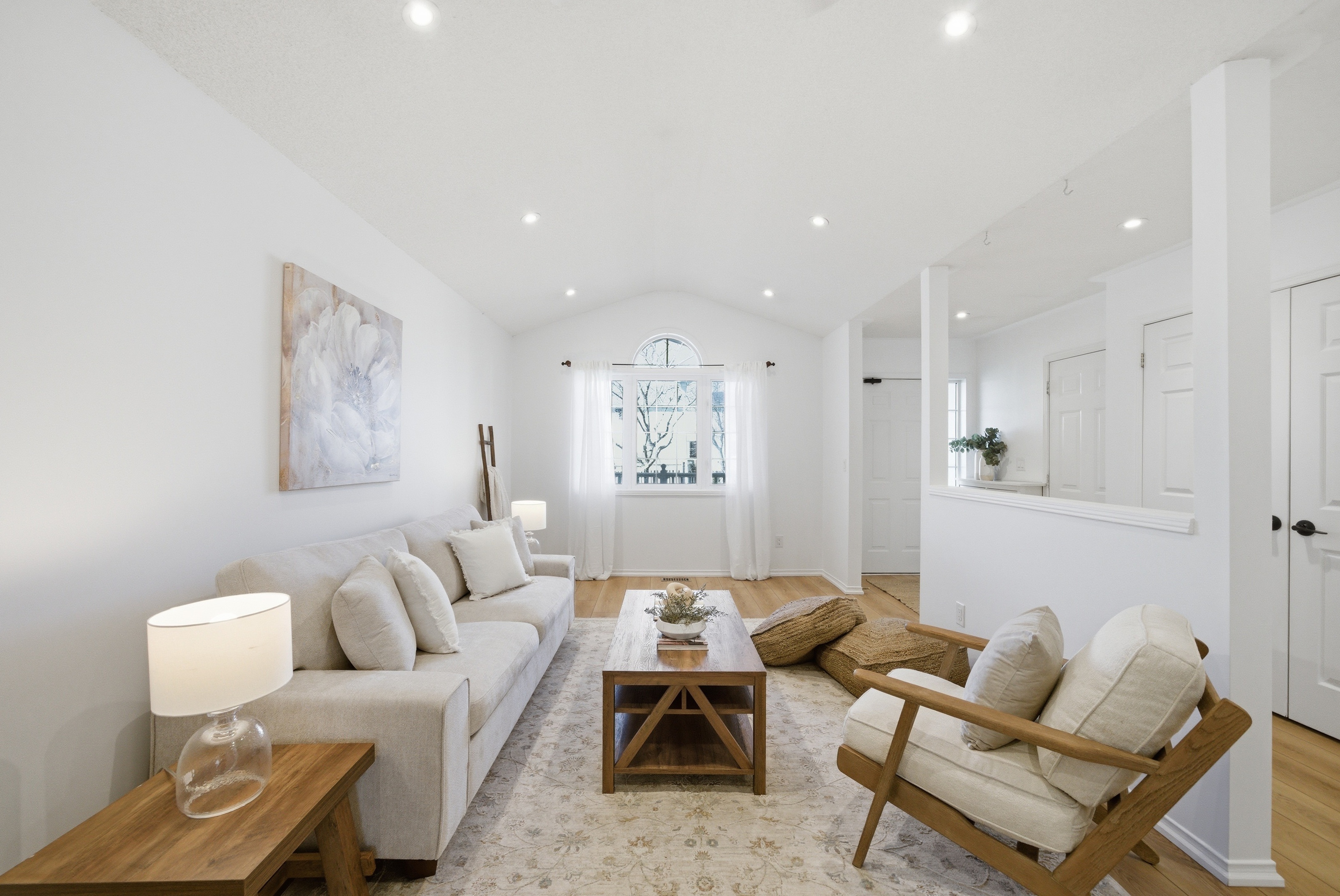
Prompt
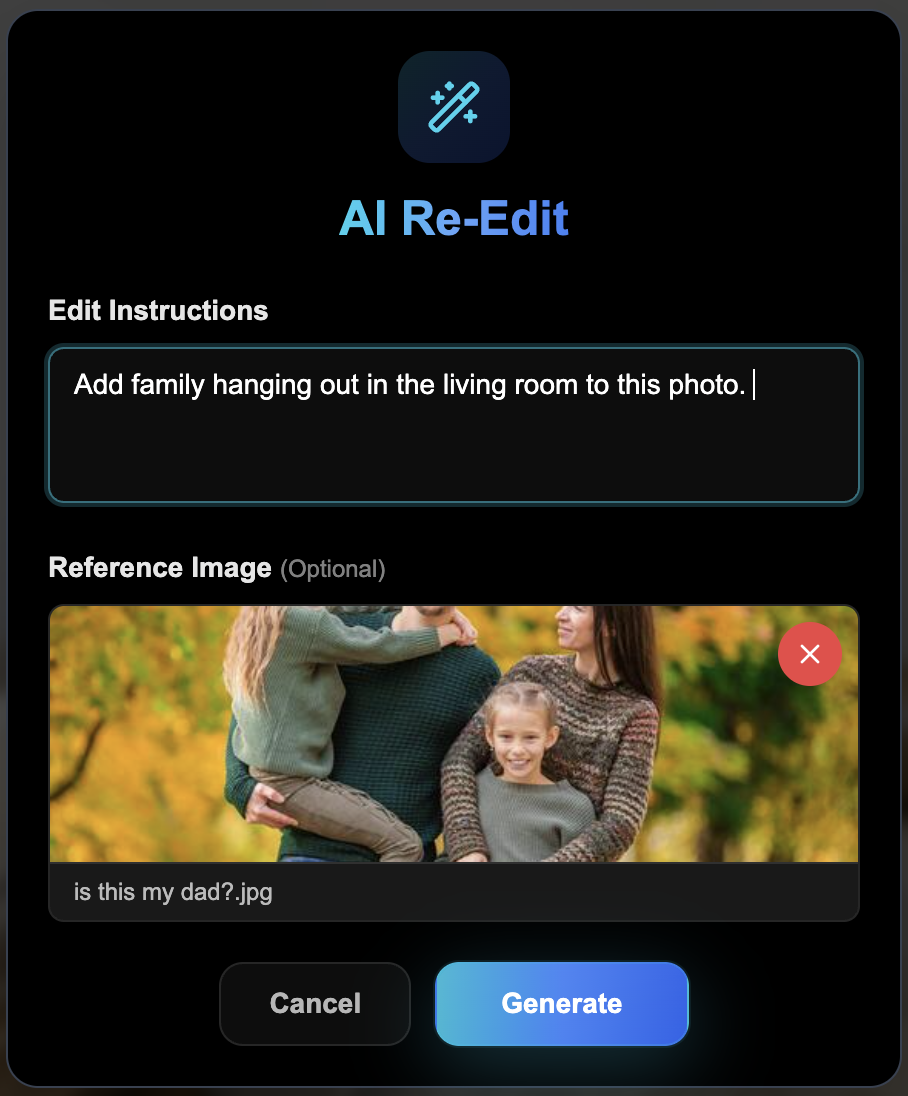
After
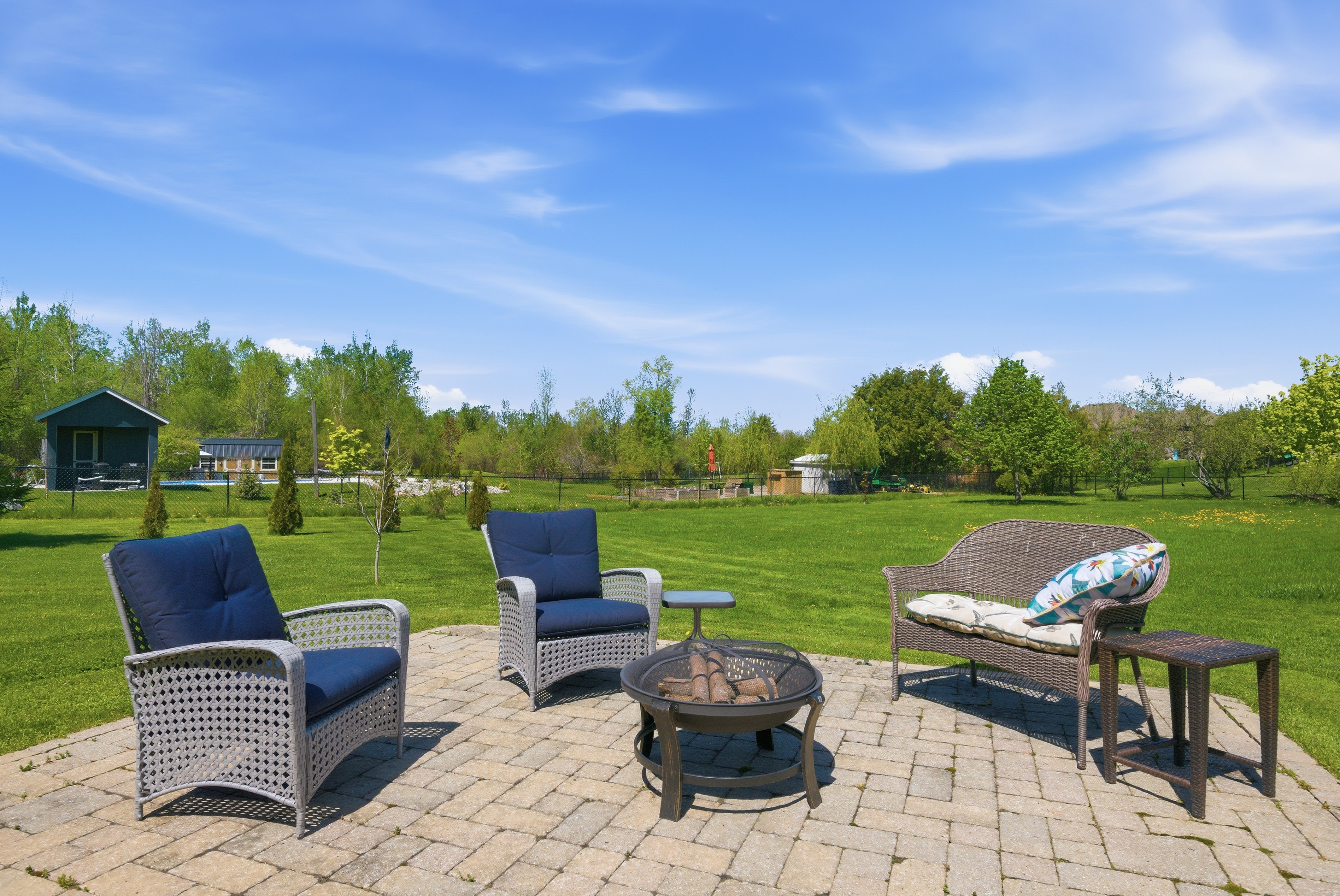
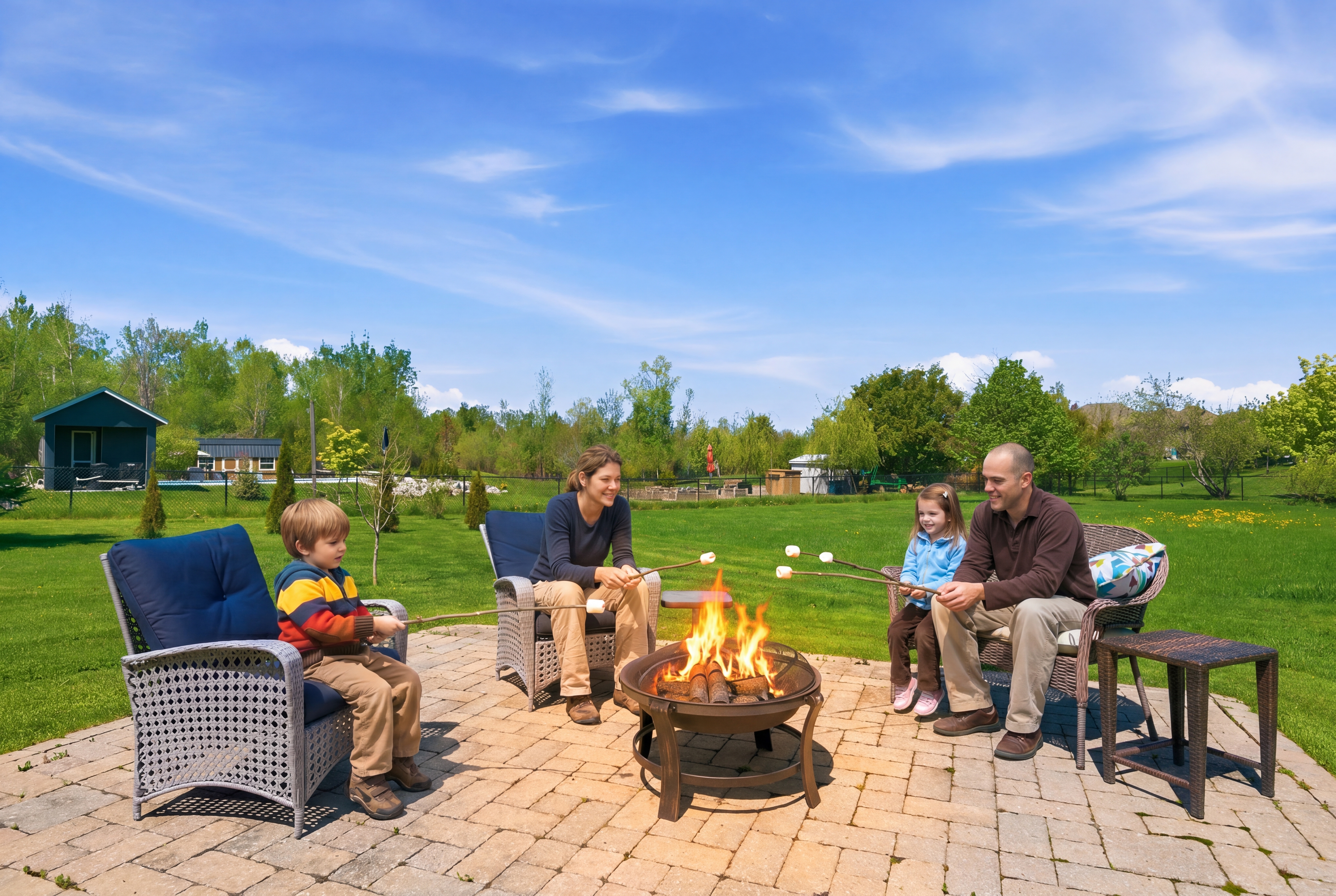
Marshmallow roasting at fire pit
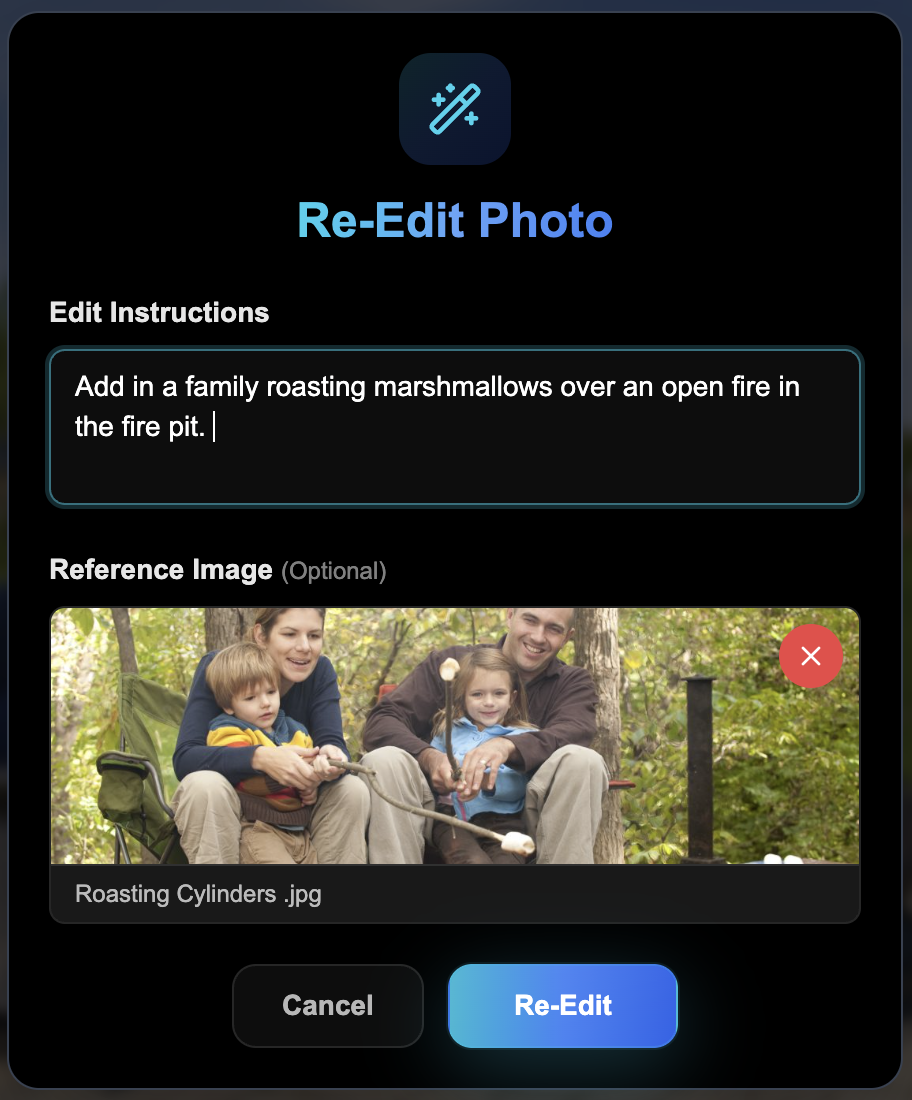
“Add in a family roasting marshmallows over an open fire in the fire pit.”
A reference image of people around a fire dramatically improves accuracy.
Before
Prompt
After
Object Fixes & Modifications
Quick fixes — no Photoshop needed.
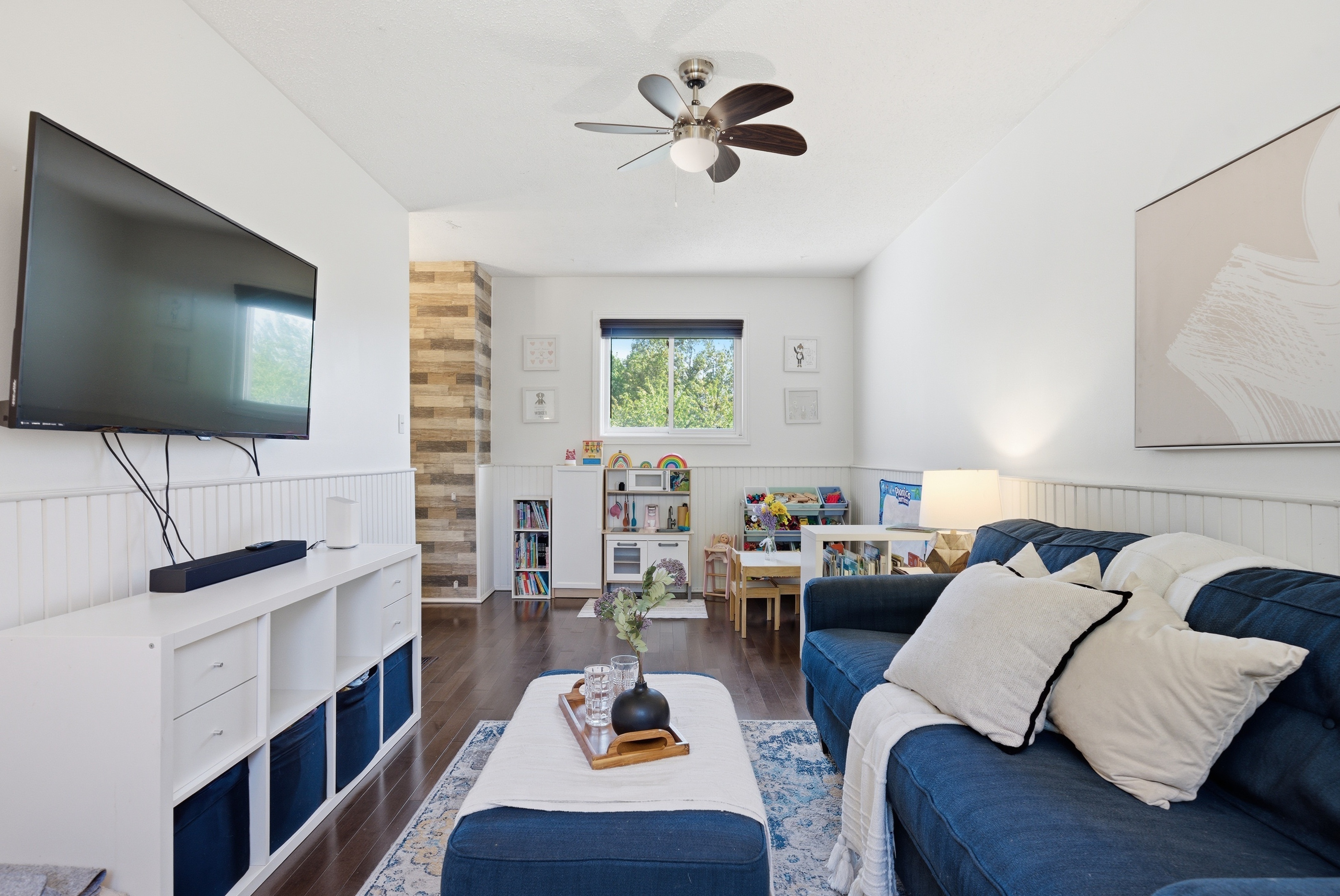
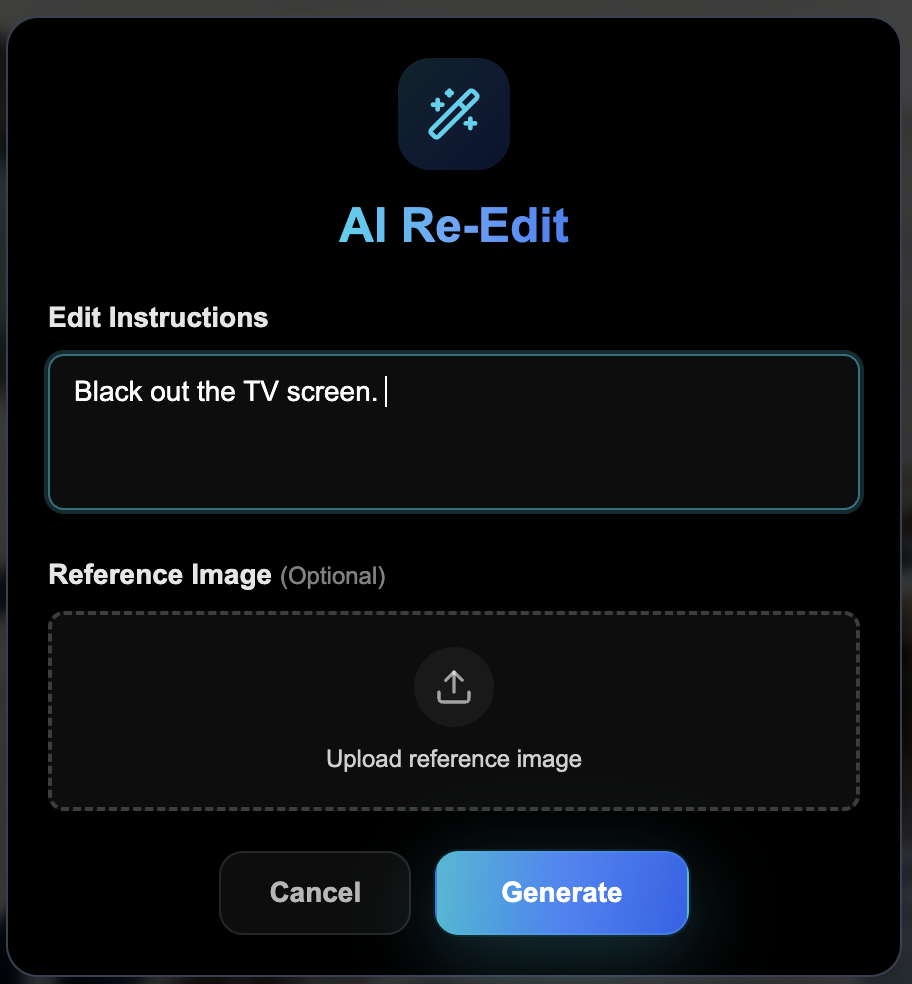
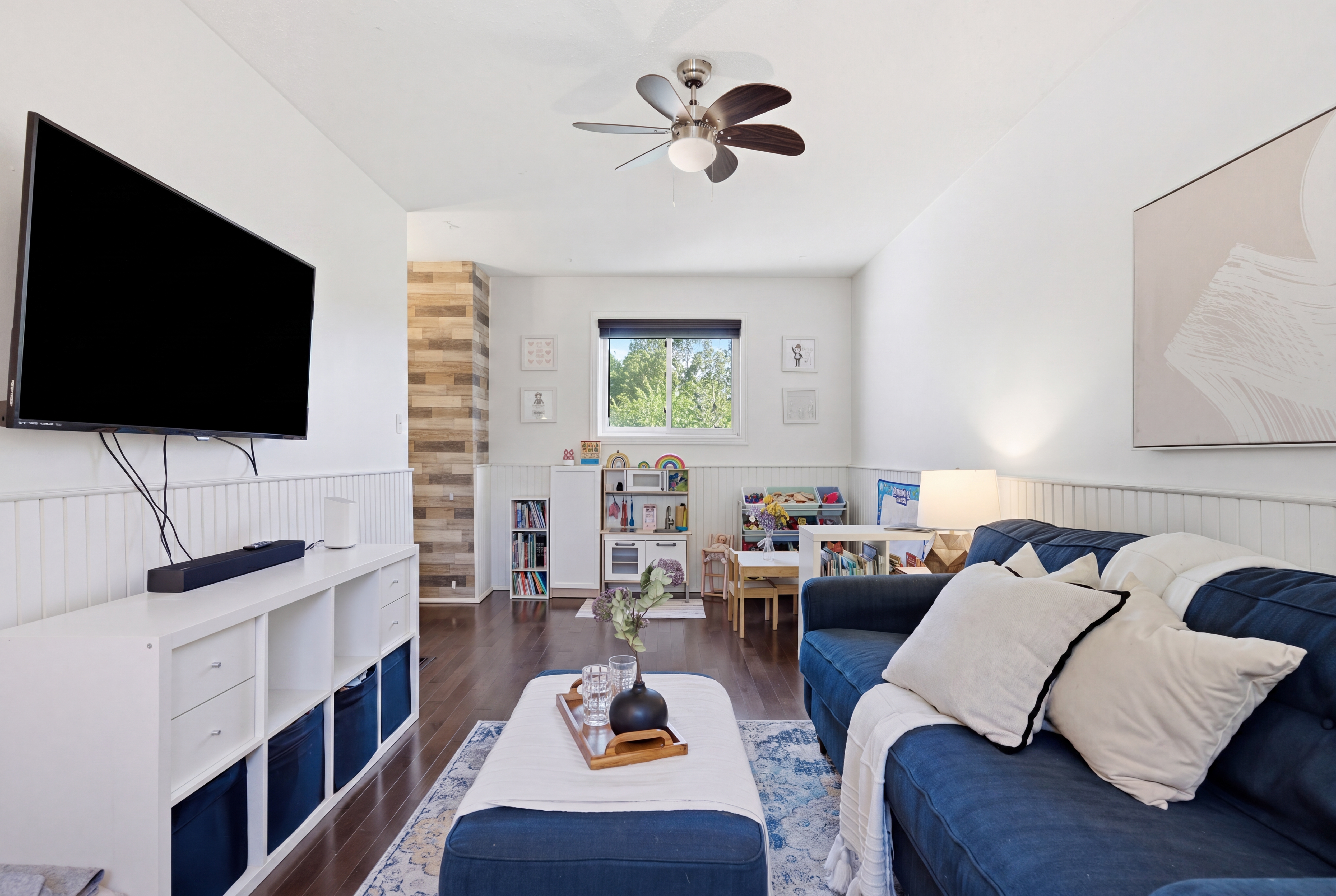
Black out a TV screen
“Black out the TV screen.”
Before
Prompt
After
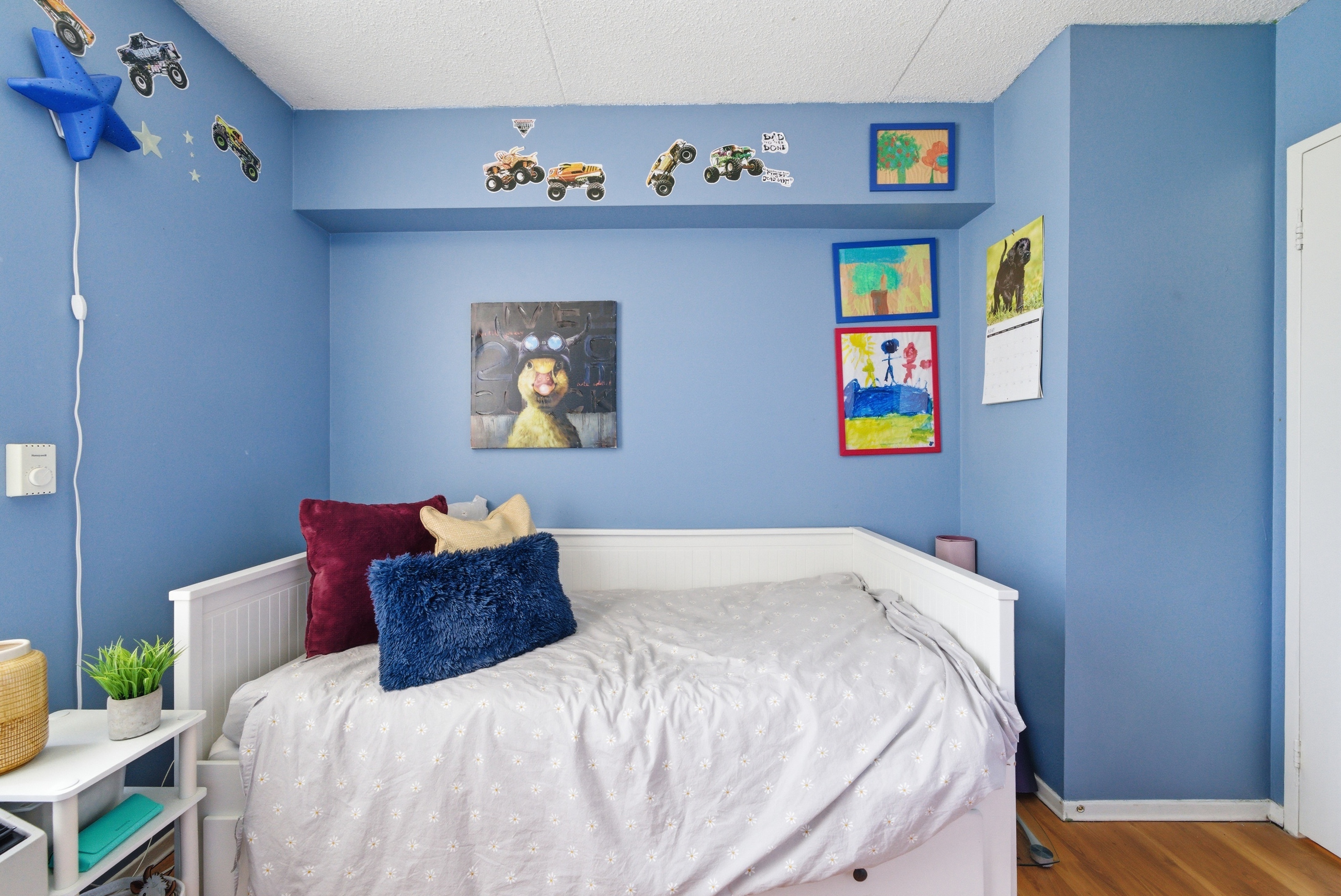
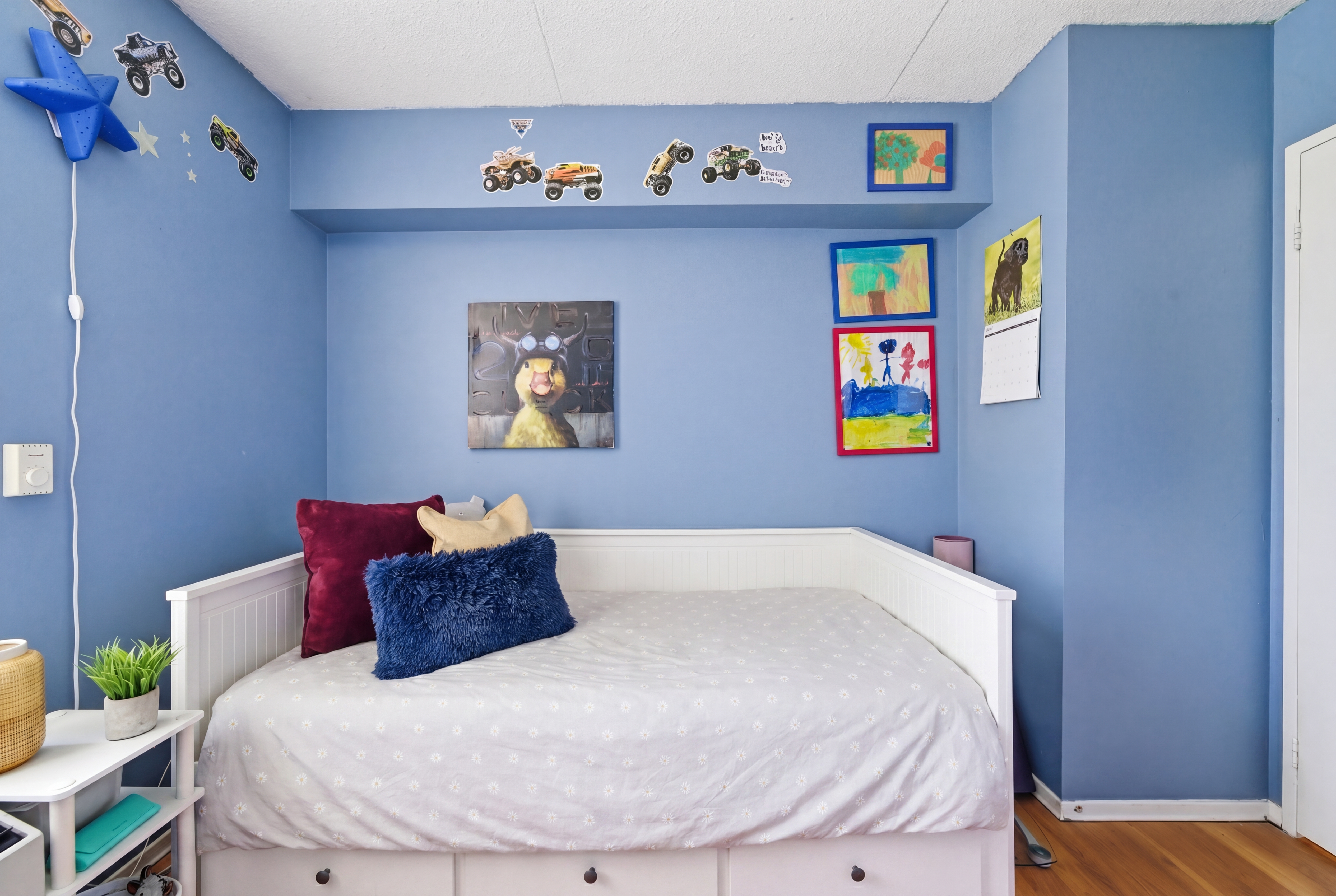
Smooth a wrinkled bed
“Remove the wrinkles on the bed but don't change or alter the comforter.”
Before
Prompt
After
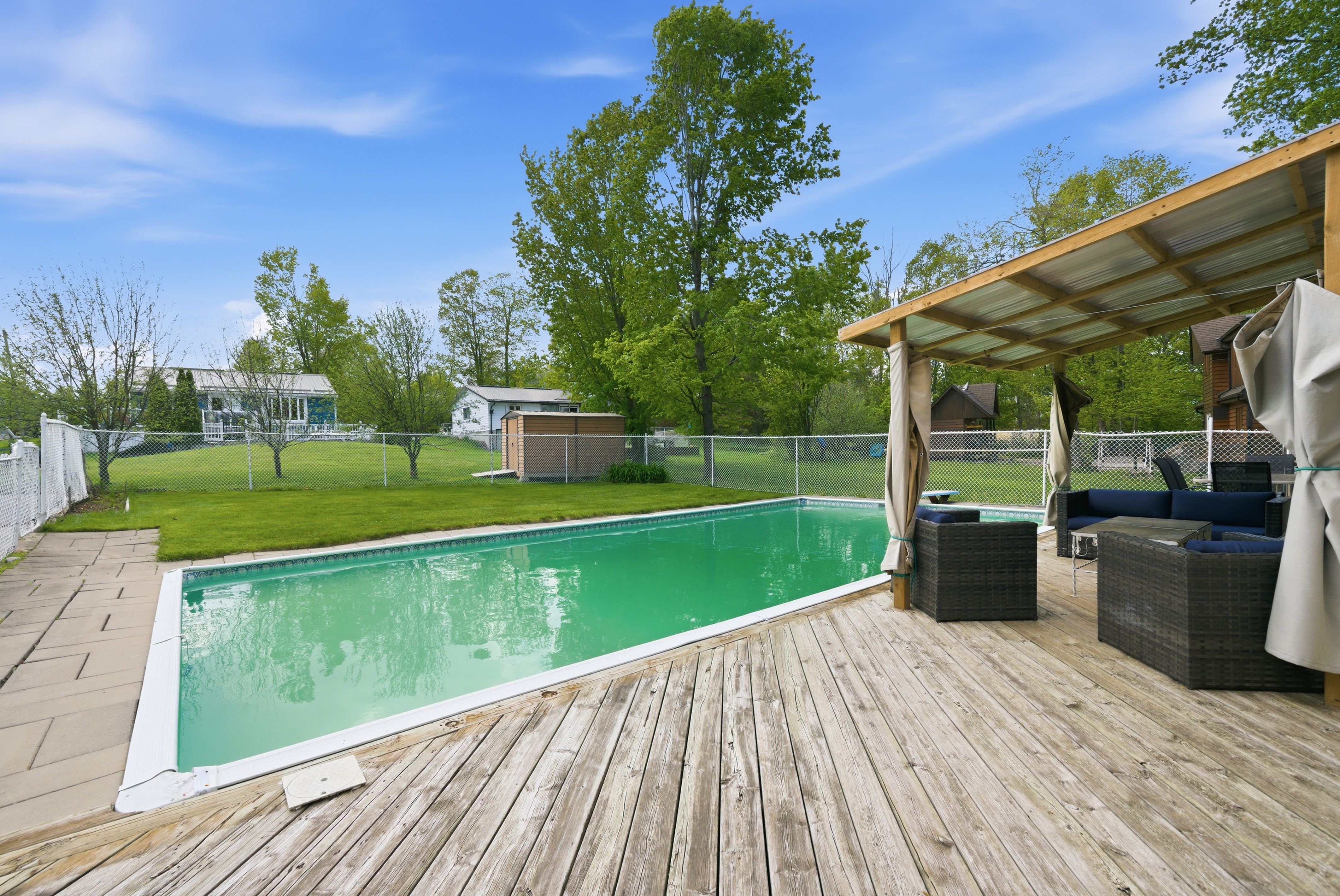
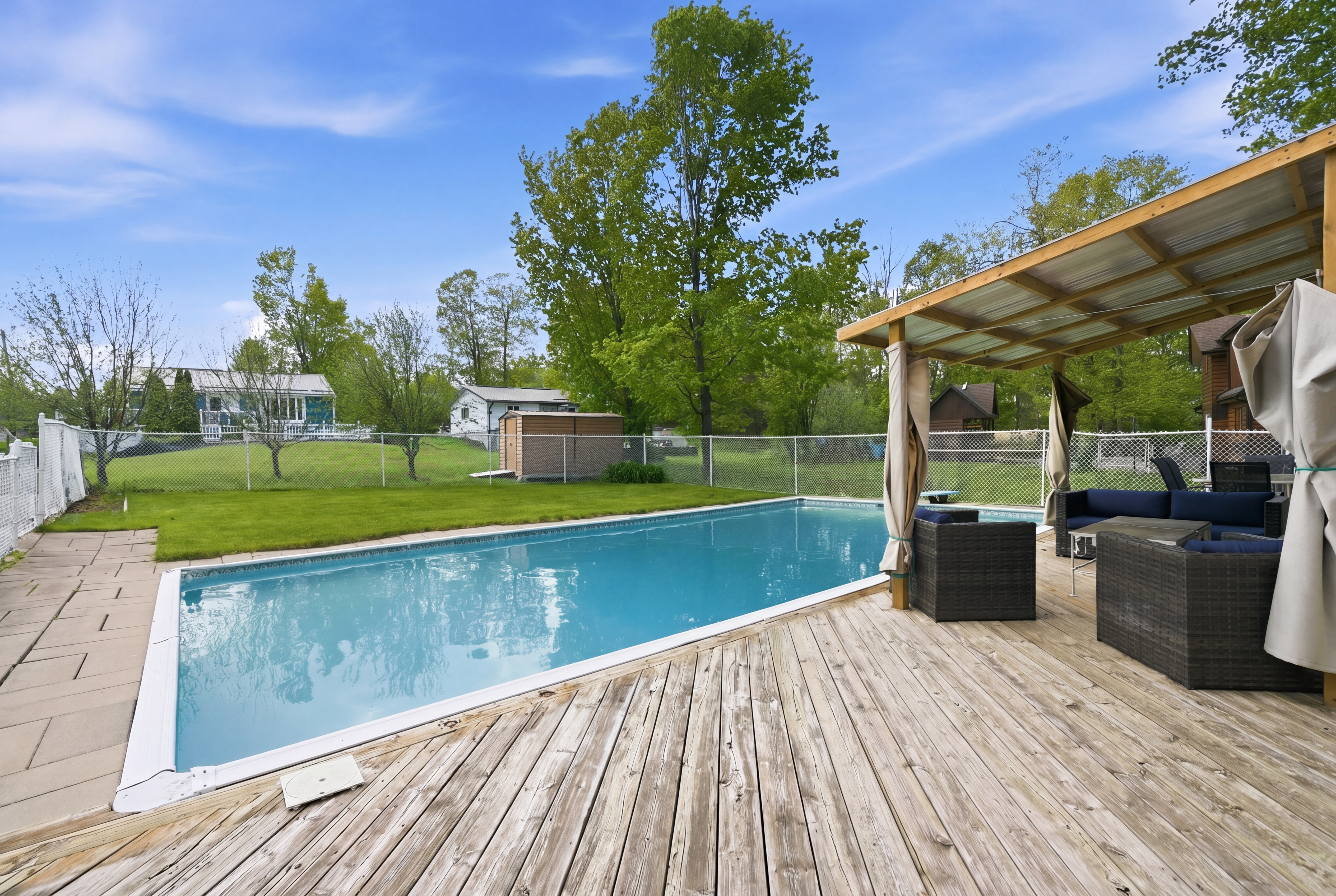
Fix green pool water
“Change the pool water from green to blue.”
Before
Prompt
After
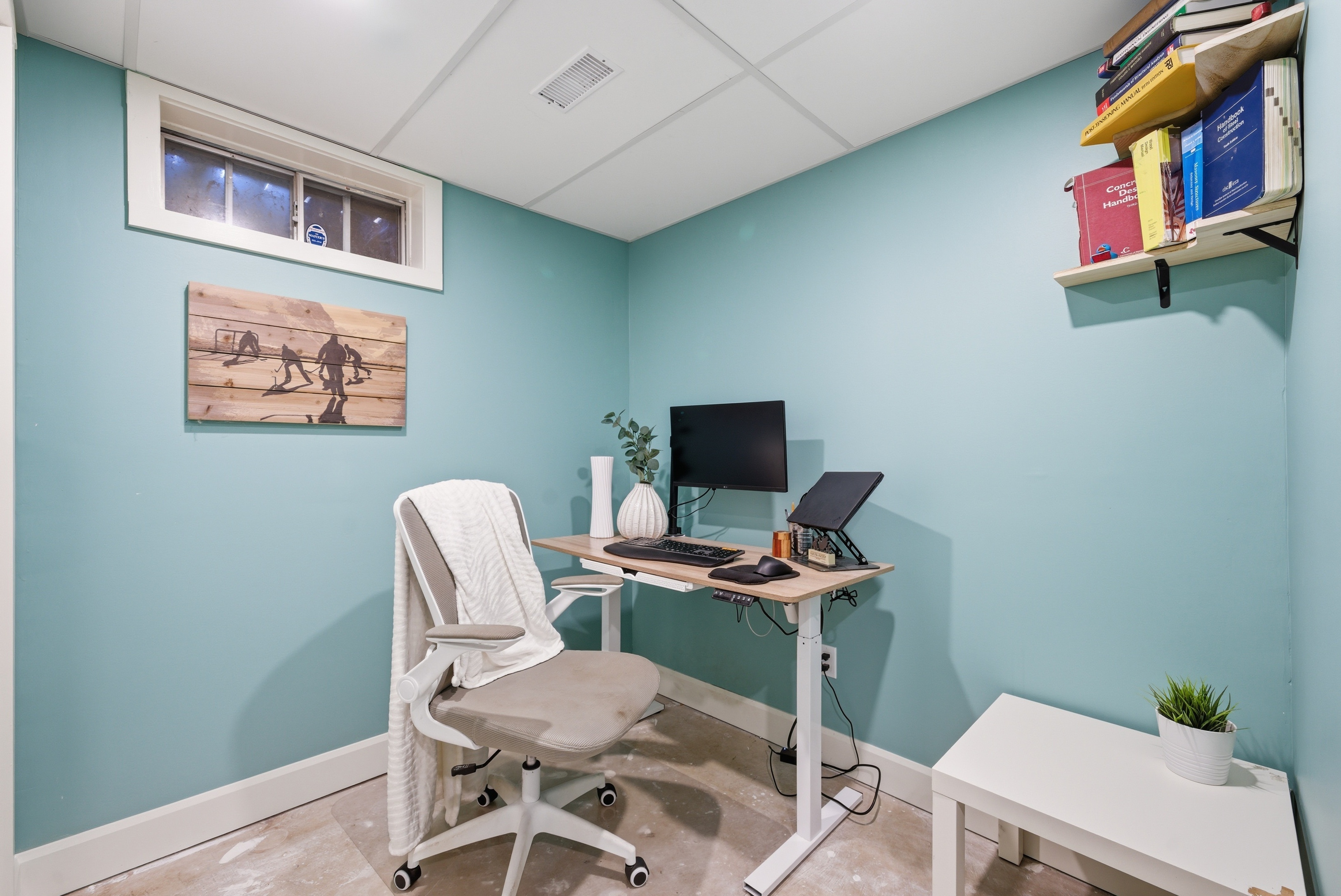
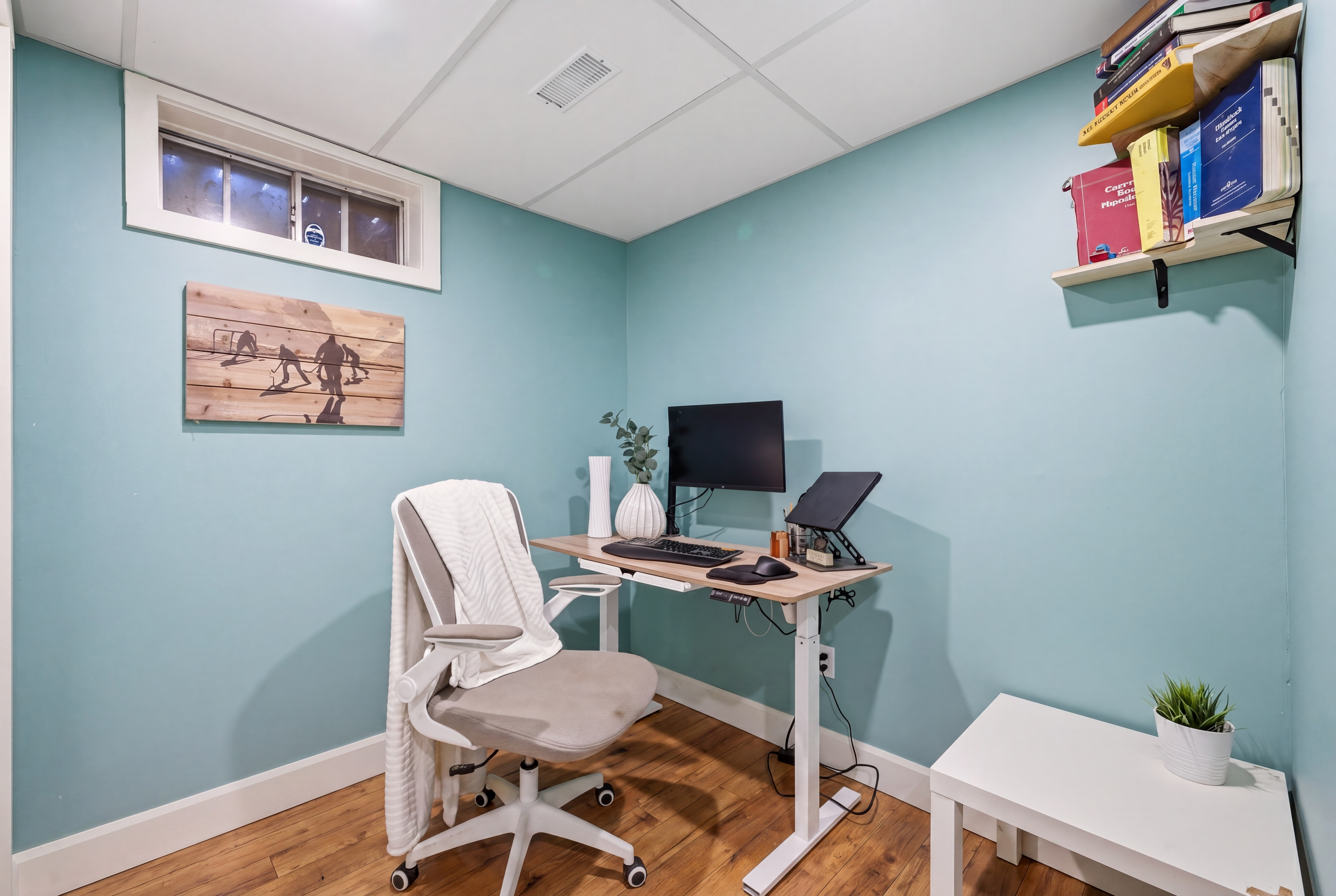
Replace flooring
“Add hardwood flooring.”
Before
Prompt
After
Bulk Editing — Shift+Click
Apply one prompt across multiple photos at once.
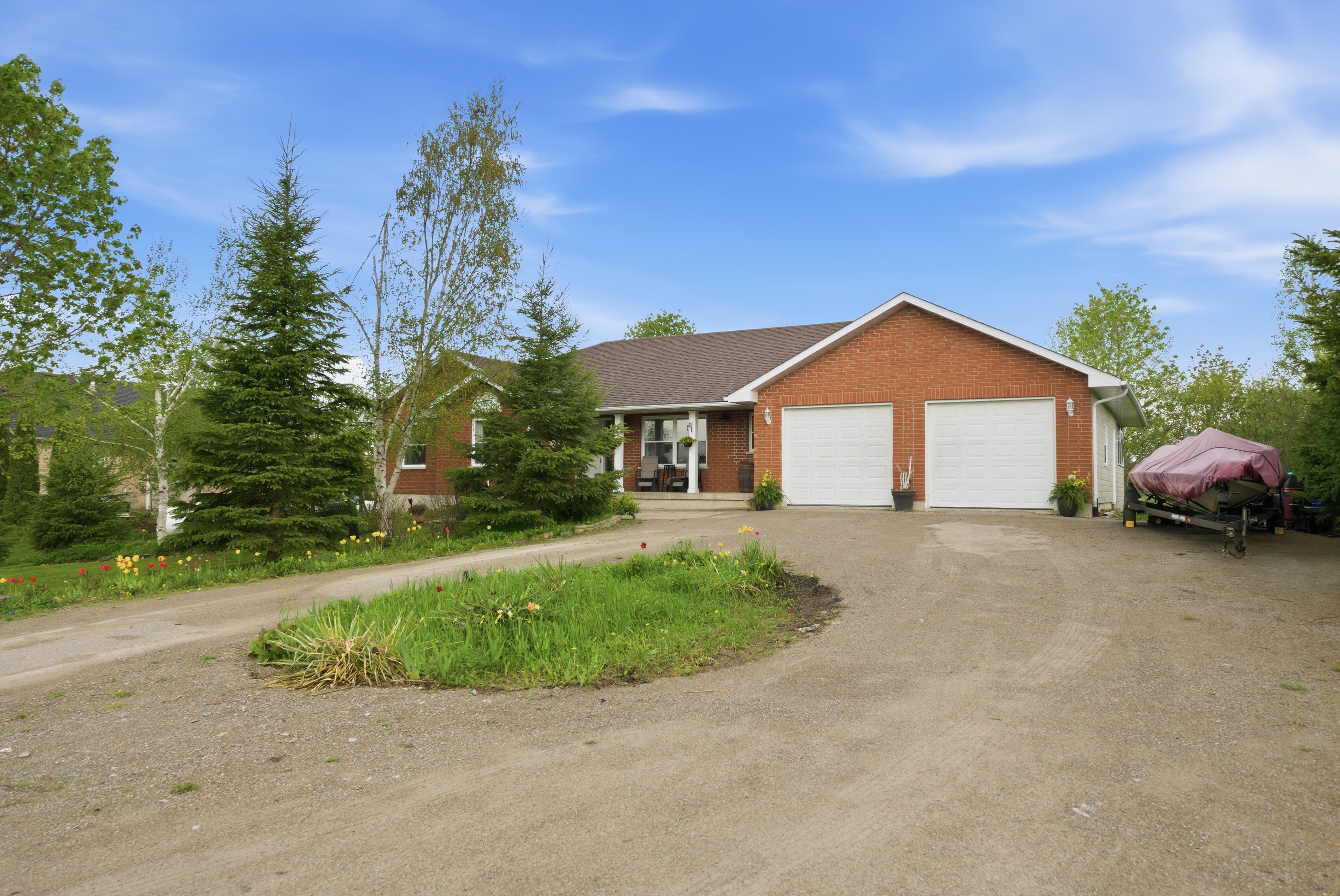
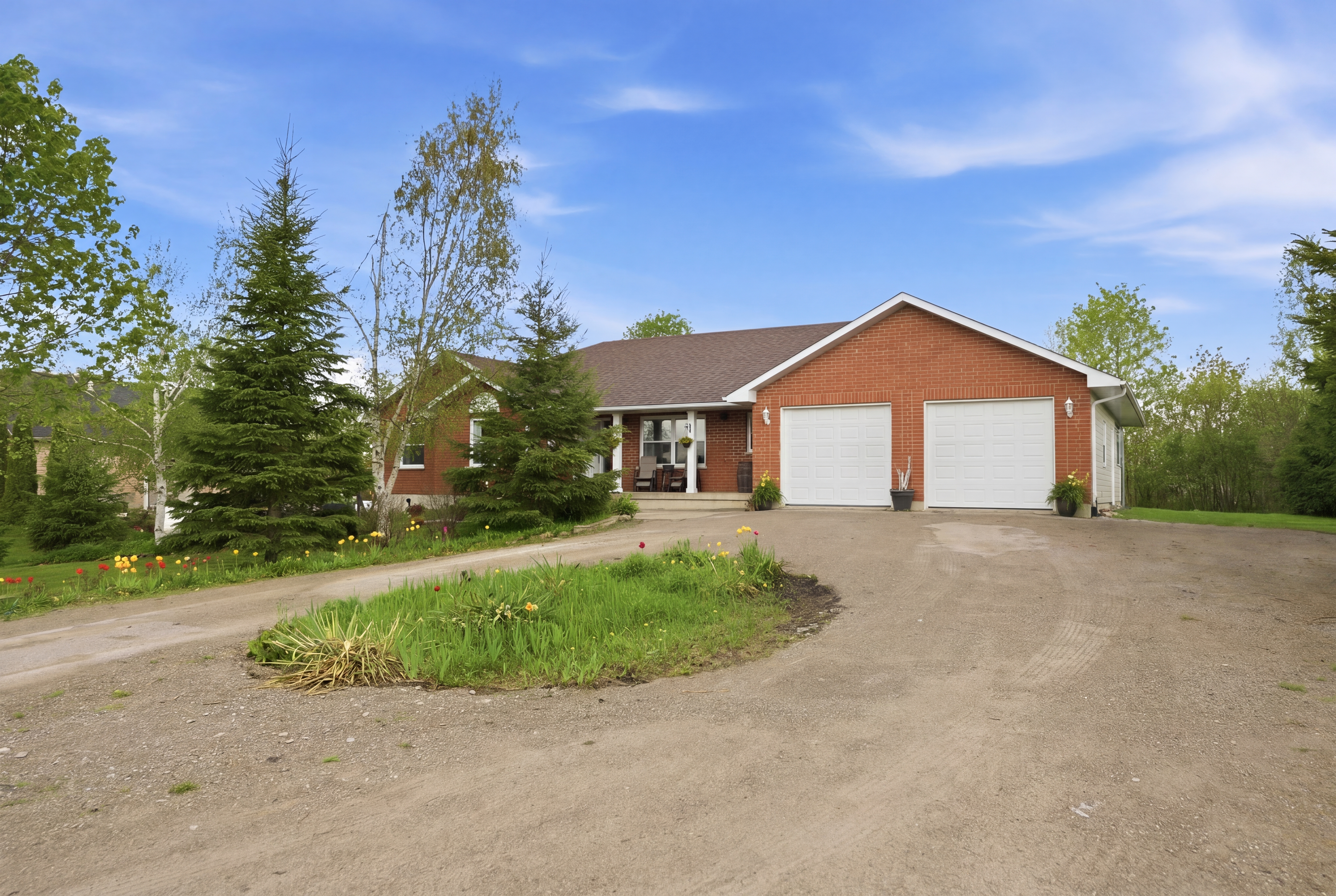
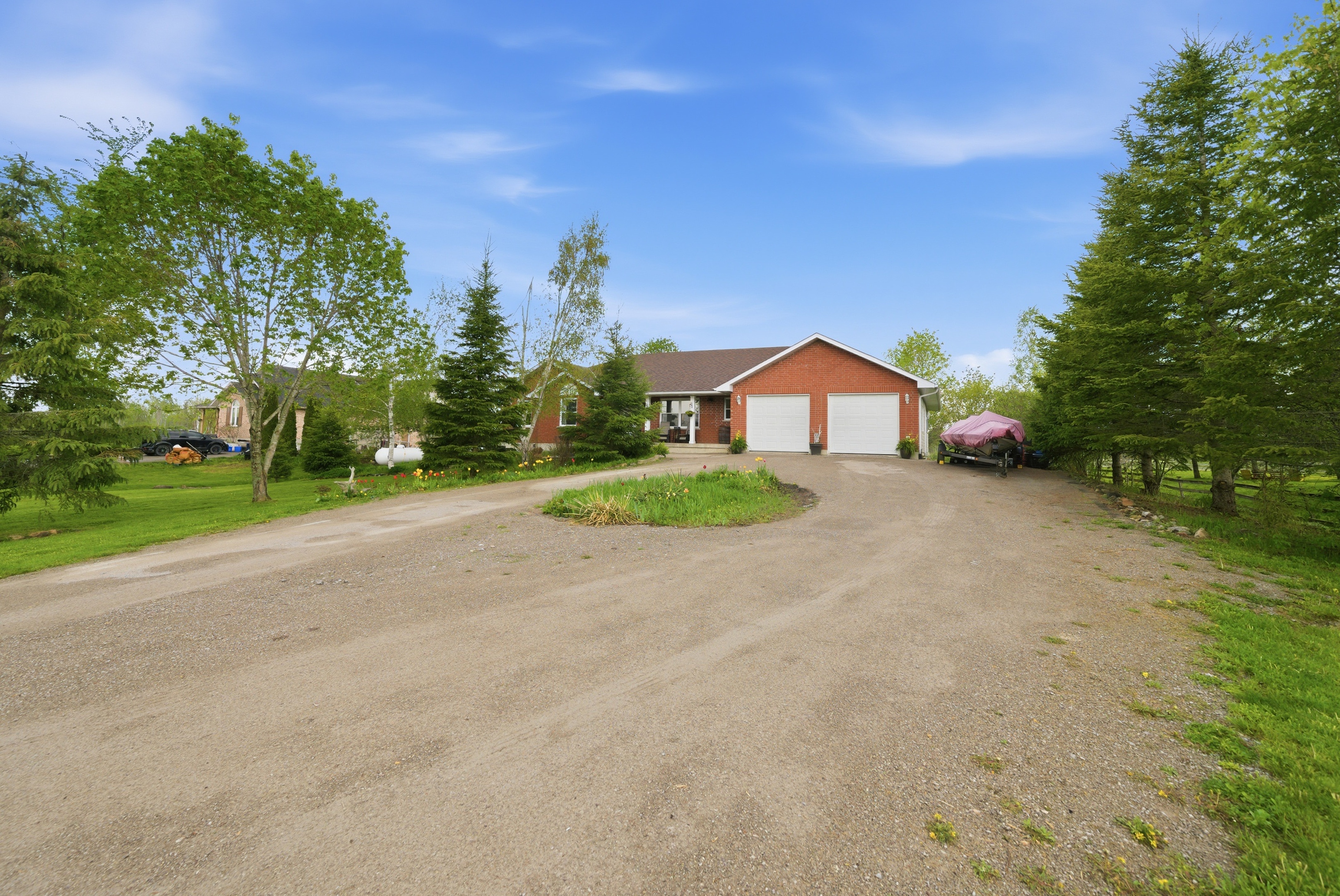
Remove the same object from multiple angles
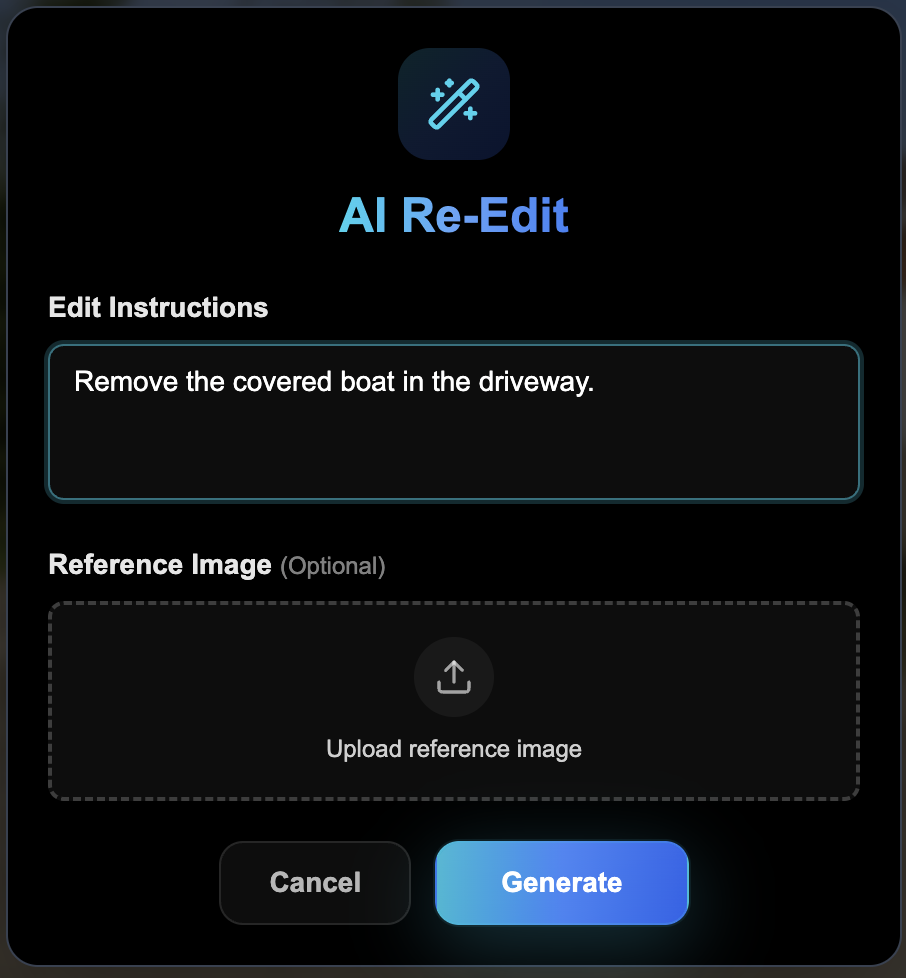
“Remove the covered boat in the driveway.”
Hold Shift and click to select multiple images, then run a single prompt. The AI adapts the edit to each photo's angle and composition.
Prompt Screenshot
Before
After
Before
After
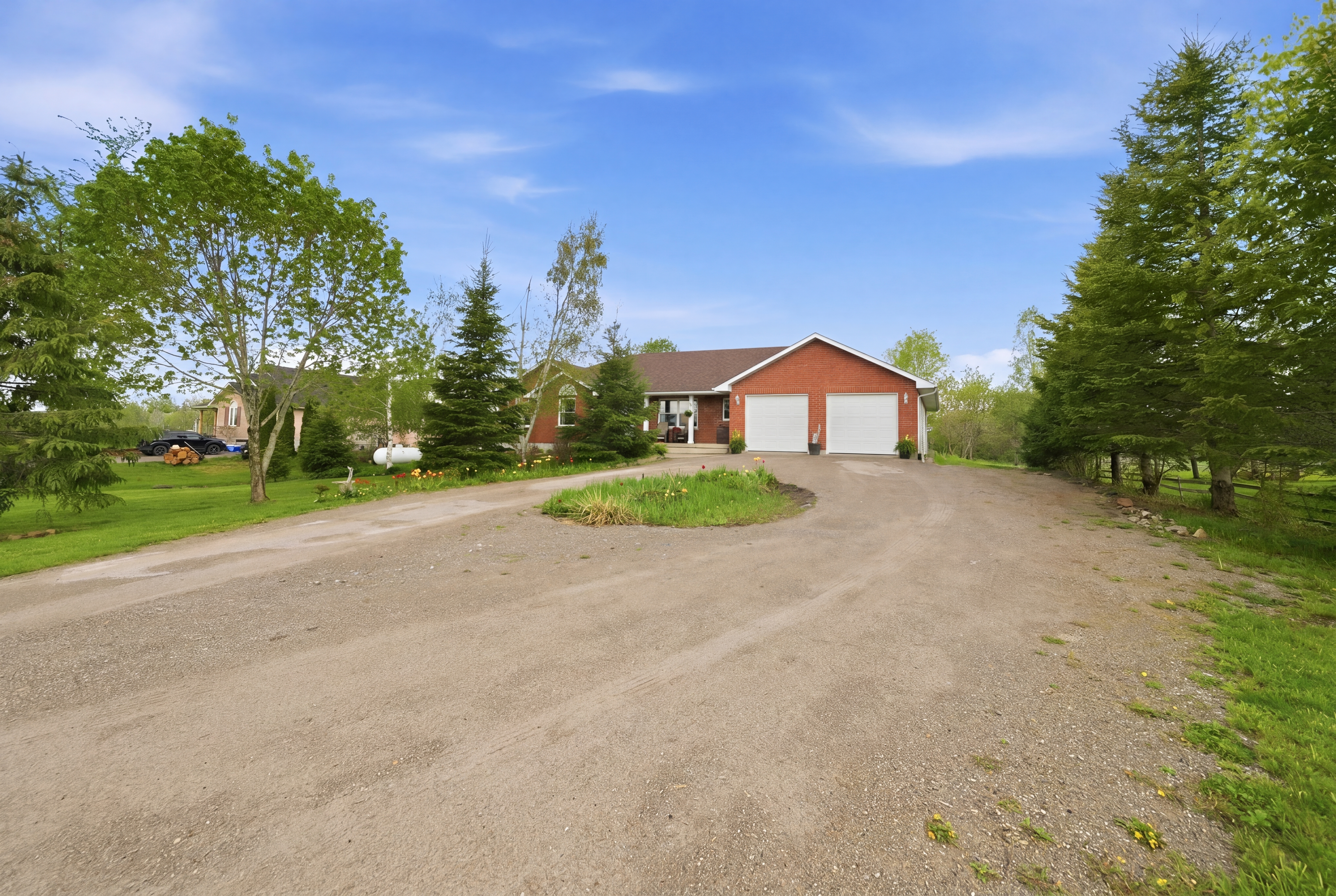
Before
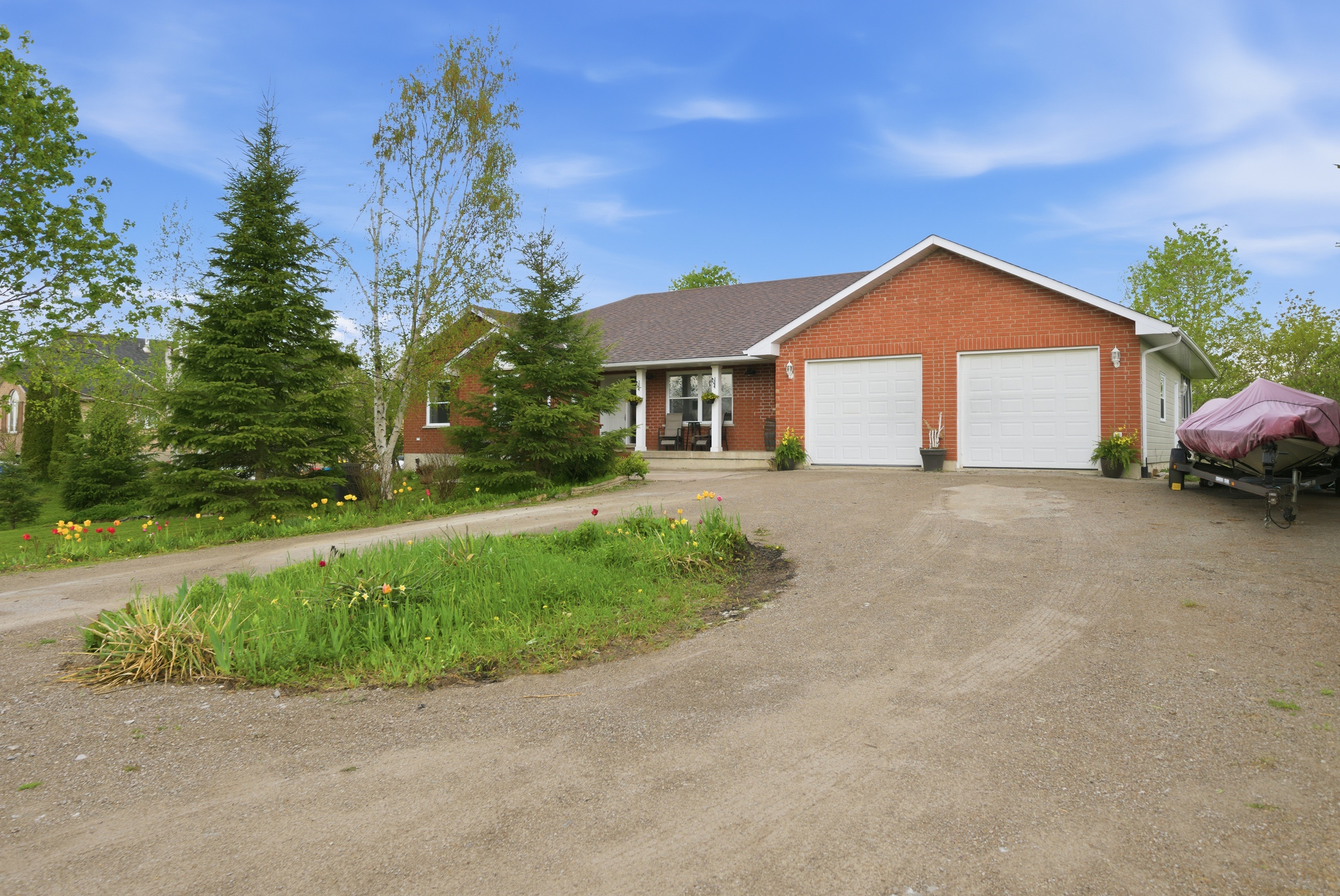
After
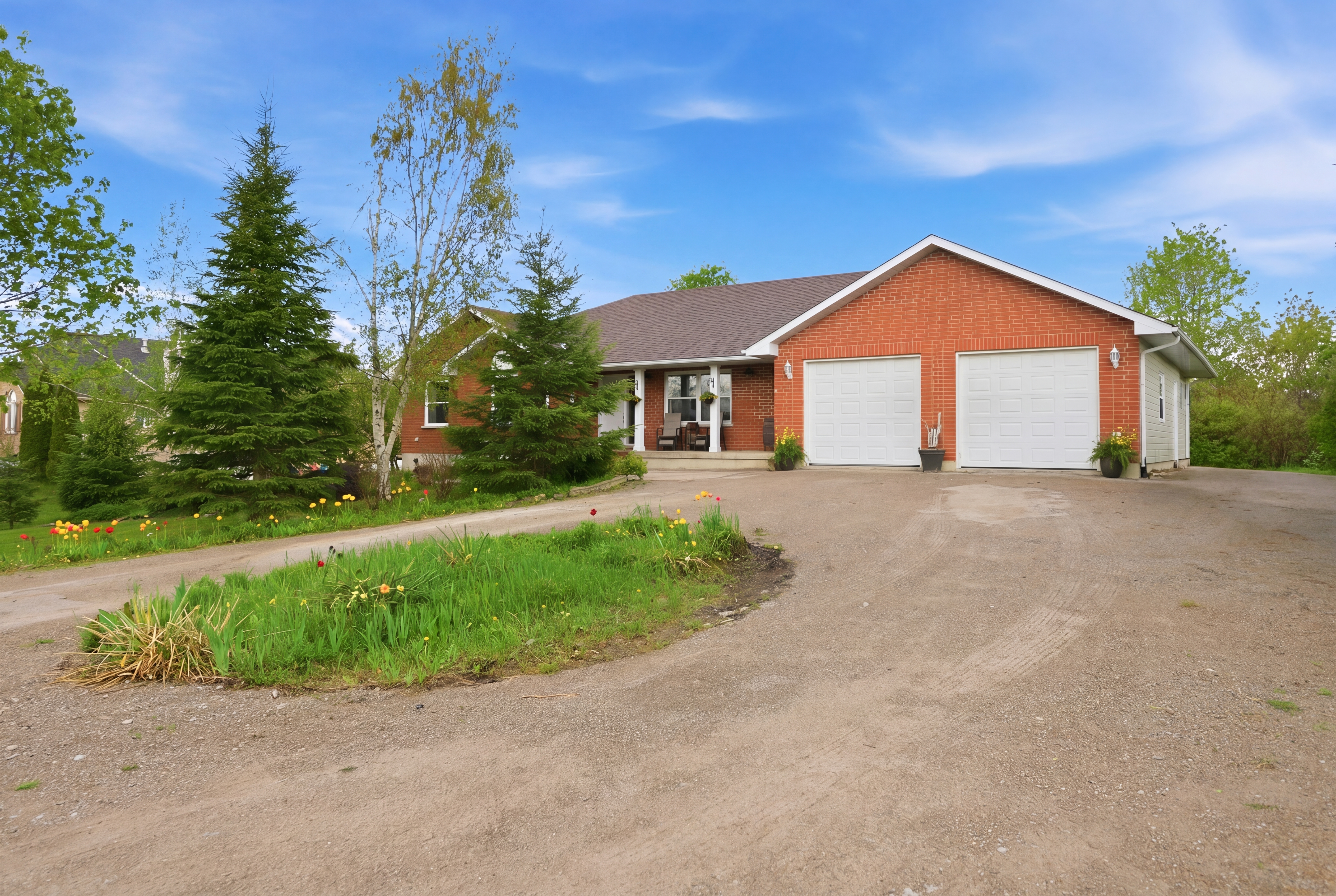
Before
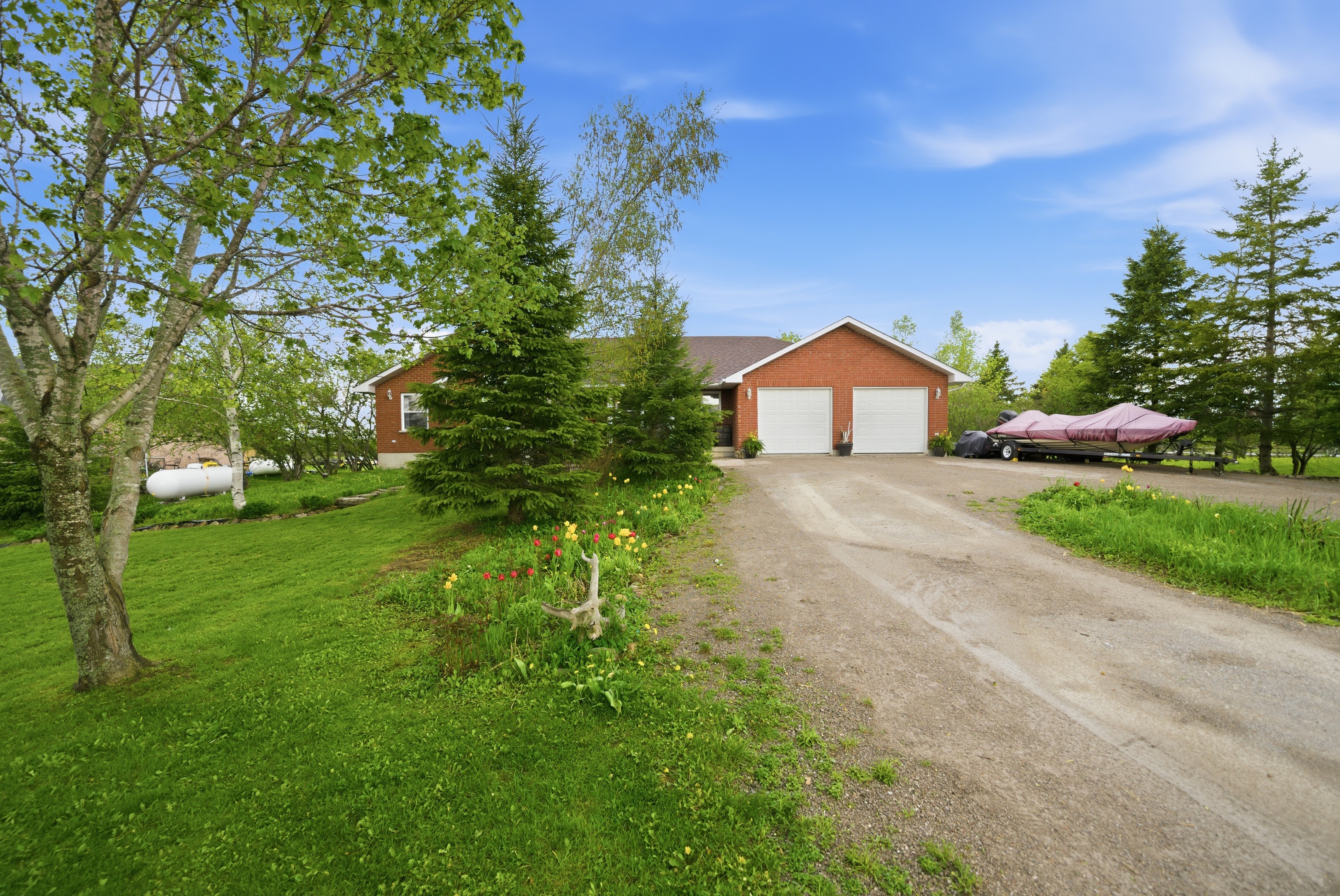
After
Stack Your Tools
AI Re-Edit works great as a finishing layer. Run Twilight, Staging, or Sky Replacement first — then apply AI Re-Edit on top to push the result further. Chaining tools unlocks results you can't get from either alone.